Best password managers for families in 2026


Many families manage dozens of online accounts every day, making it difficult to remember passwords and share them securely. A password manager helps solve this problem by storing all logins in one secure vault that everyone in the family can access.
However, not every password manager is designed with families in mind. I tested multiple options based on security, ease of use, sharing features, and cross-device compatibility. Based on my findings, I curated this list of the best password managers for families in 2026. Spoiler alert: NordPass, 1Password, and RoboForm stand out as the top choices. Below, I explain what makes them different and how they compare with other options.
Top 5 best password managers for families – shortlist
- NordPass – best family password manager for 2026
- 1Password – family password manager with great extra features
- Keeper – password manager for families with exceptional security
- RoboForm – basic, budget-friendly, and secure password manager for families
- Proton Pass – easy and intuitive password manager with 3TB of cloud storage
Recent Updates
Best family password managers – full list
I worked with the research team to analyze many password managers and find the best ones for families. For a week, I tested each service based on its security, family sharing options, ease of use, device sync, features, and overall value to identify the top providers.
1. NordPass – best family password manager in 2026

| Rating: | |
| Family plan: | 6 accounts |
| Price: | From $2.32/month |
| Platforms: | Windows, macOS, Linux, Android, iOS |
| Coupons: | NordPass coupons |
NordPass is the best password manager for families in 2026, earning a perfect score in my testing. In my experience, it’s very easy to use, highly secure, and works smoothly across devices, making it a great choice for families looking for a simple way to store and share passwords safely.
Security. NordPass scored a full 5/5 in my security testing. It uses zero-knowledge architecture and advanced XChaCha20 encryption to protect each user’s vault, so even NordPass can’t access your stored credentials. It also supports multi-factor authentication and has completed independent security audits. Another privacy advantage is that NordPass is based in Panama, a country known for privacy-friendly laws. NordPass' most recent security assessment was a SOC 2 Type 2 audit completed in 2023. It evaluated the effectiveness of Nord Security’s controls for protecting customer data and sensitive information.
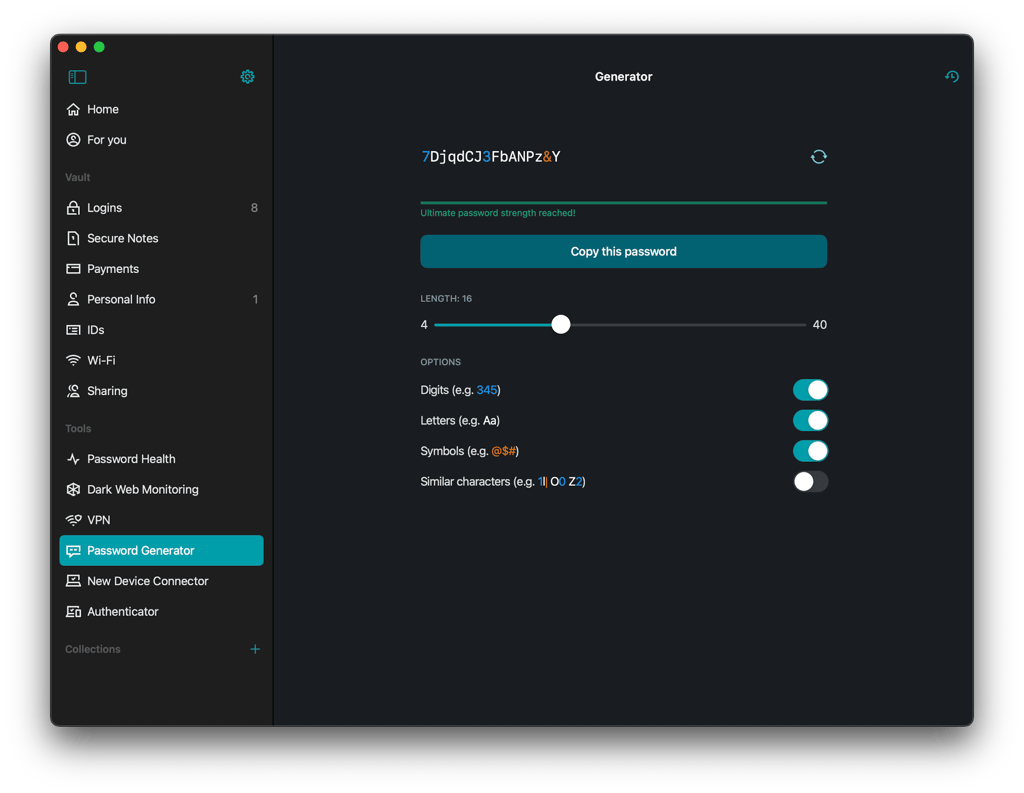
Family sharing. The Family plan supports up to 6 users and allows secure password sharing between accounts. Permissions were easy to manage, so you can control who has access to specific credentials while keeping everything stored in the encrypted vault. NordPass also includes an Emergency Access feature, which lets you grant trusted contacts access to your vault if something happens to you. This can be particularly useful for families, and it’s currently available on the desktop and Android apps.
Ease of use. NordPass is one of the most beginner-friendly password managers I tested. The interface is clean, simple, and well-organized, making it easy to navigate, even for younger or less technically experienced family members. Importing passwords, creating new entries, or sharing credentials only took a few steps.
Device sync. During testing, NordPass synced passwords fast across all major platforms, including Windows, macOS, Android, iOS, and browser extensions. Changes appeared almost instantly across devices, ensuring every family member always has access to the latest login information.
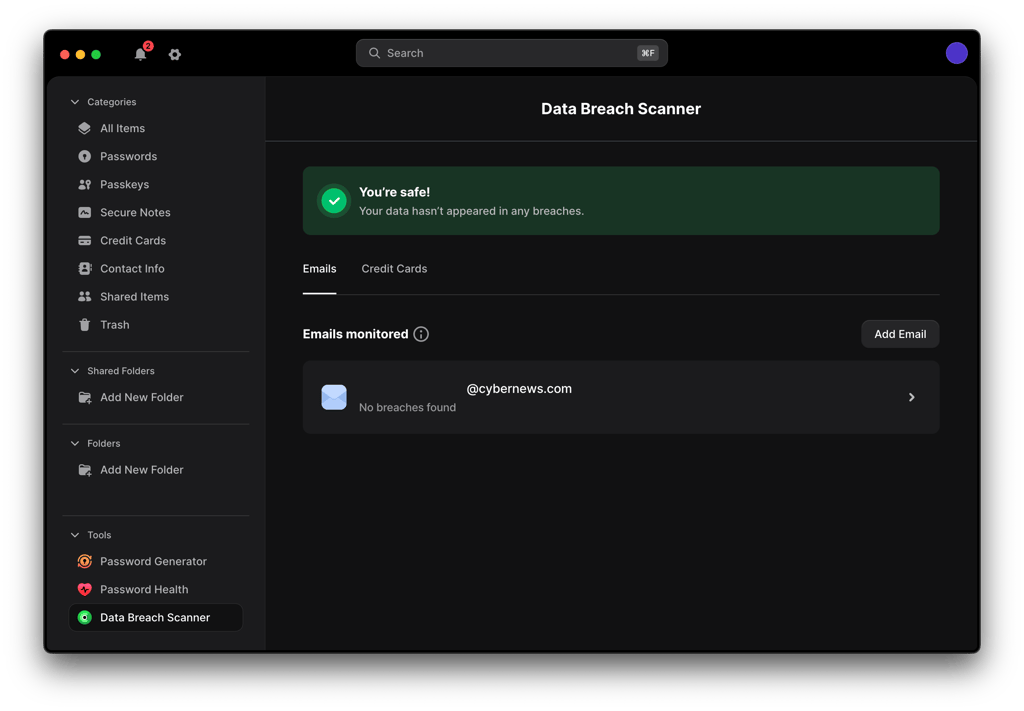
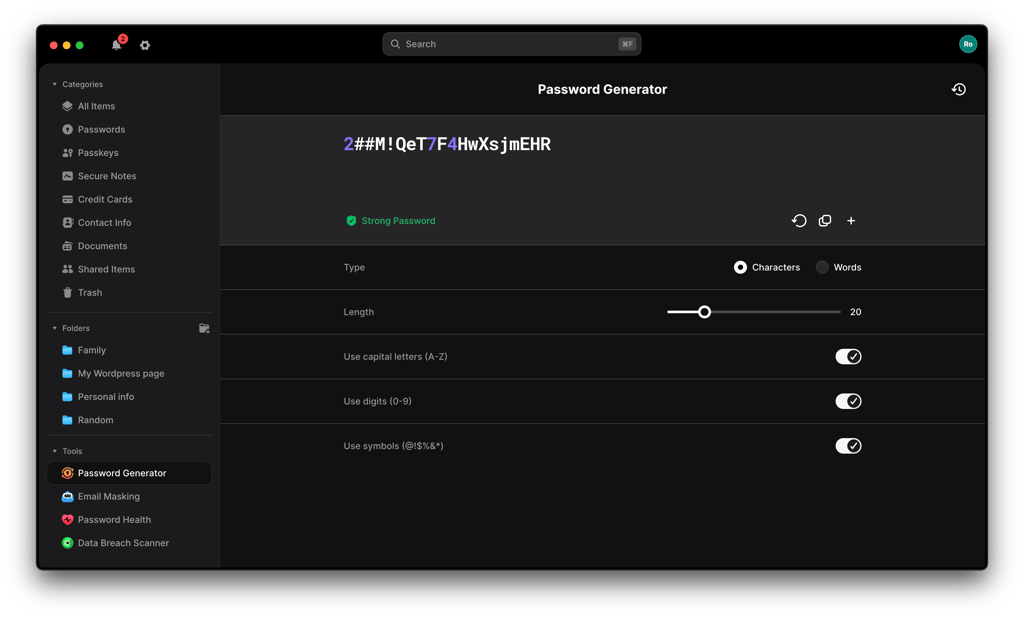
Features. NordPass includes useful tools that help families securely manage credentials. These include a password generator, autofill, password health monitoring, and a data breach scanner that alerts users if their credentials appear in leaked databases. It also offers Email Masking, which lets you generate alias email addresses to protect your real inbox when signing up for websites, and Dark Web Monitoring, which continuously checks whether your email addresses or credentials appear in known data leaks.
Value for money. NordPass also scored highly for value, as it costs $2.32/month with a 2-year plan. Its Family plan offers multiple user accounts under a single subscription while still including all core security and management features. Considering its strong security, ease of use, and reliable syncing, it offers excellent value for families seeking a secure password manager.
Personal opinion. From my experience, NordPass feels like a modern password manager with all the tools you’d expect today. It combines strong security with a simple design, which is exactly what families need. What really sets it apart from competitors for me is the extra protection layer, including password health checks, dark web monitoring, and the Email Masking feature that adds another level of privacy when creating accounts online. Overall, it’s a great example of how a password manager should work – secure, intuitive, and built with real-world privacy in mind.



2. 1Password – password manager with extra family-friendly features

| Rating: | |
| Family plan: | 5 accounts |
| Price: | From $4.49/month |
| Platforms: | Windows, macOS, Linux, Android, iOS |
| Coupons: | 1Password coupons |
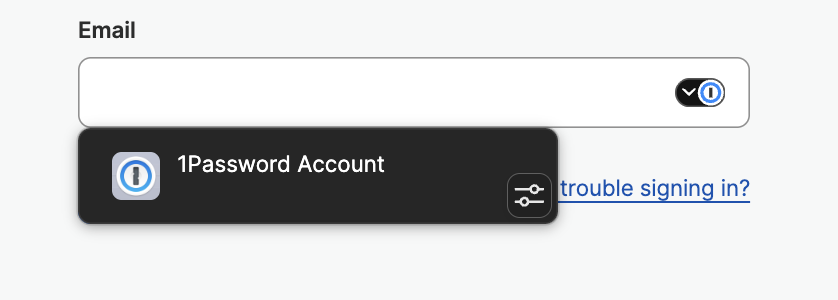
1Password is one of the best premium password managers for families. I spent a few weeks using it day to day with my family to see how it handles sharing, syncing, and security. It’s highly polished, easy to use, and comes with advanced tools that help families maintain strong password hygiene while keeping everyone’s data safe.
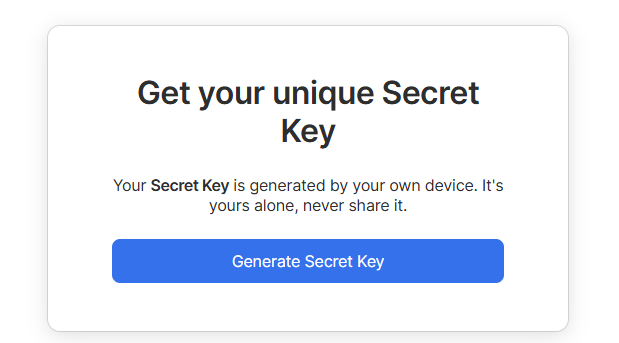
Security. 1Password uses zero-knowledge architecture and AES-256 encryption to protect all vaults. One standout security feature is the Secret Key, a unique 34-character code issued during account setup that provides an extra layer of protection when signing in on new devices. Additional security measures include multi-factor authentication, passkeys, and regular independent audits. Families can also feel safer knowing that sensitive credentials can be stored offline with the Emergency Kit, which is great for parents who want a backup.
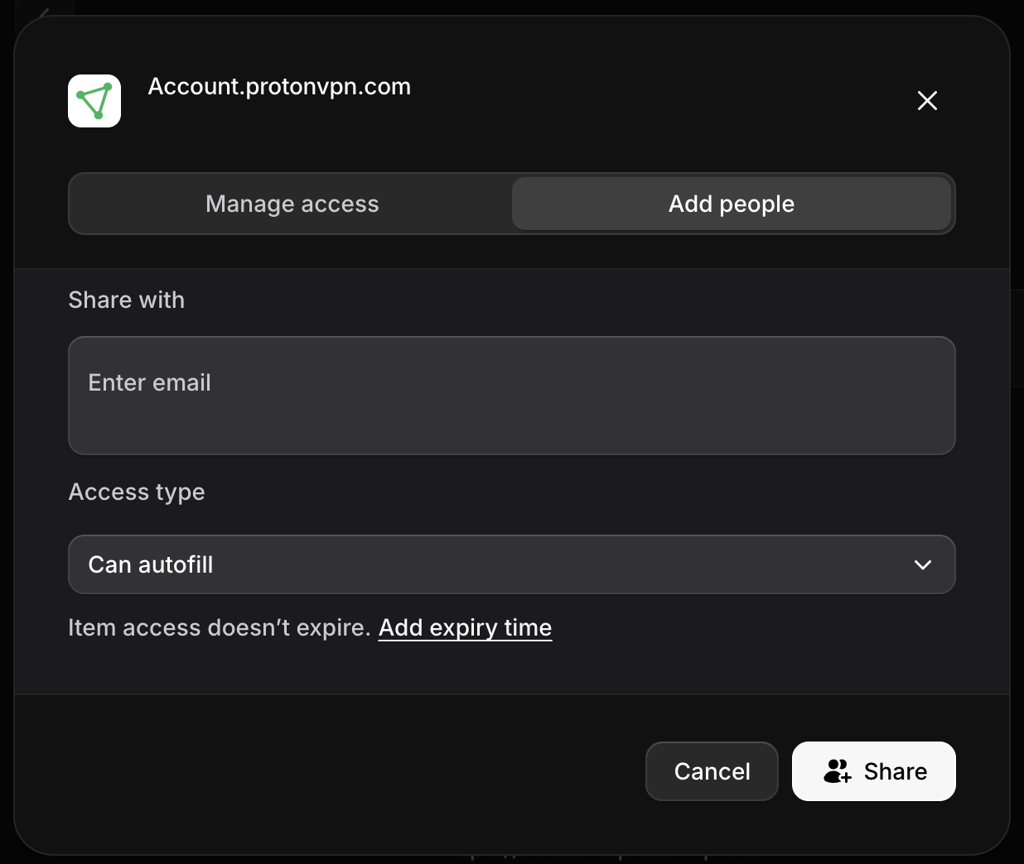
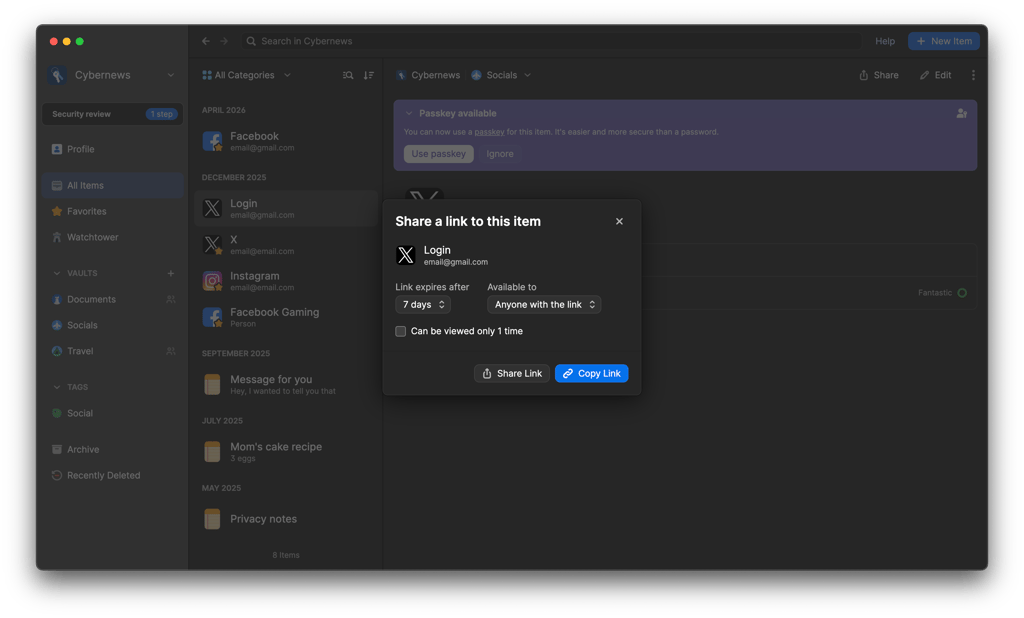
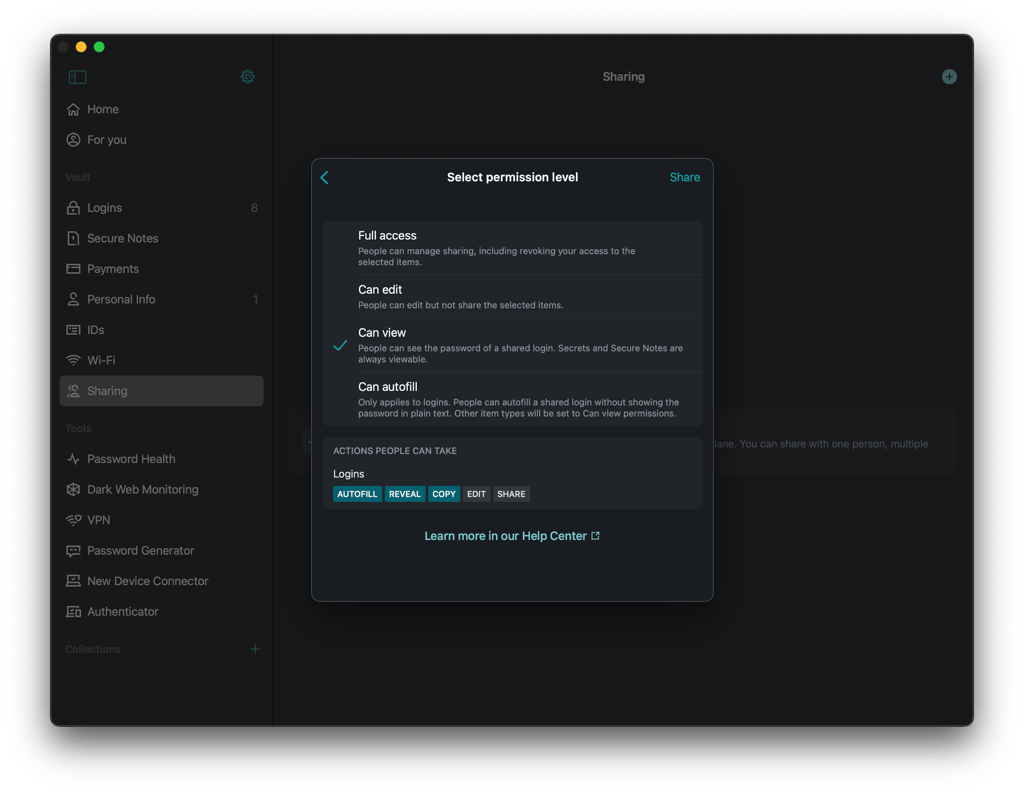
Family sharing. The Families plan supports up to 5 users and allows shared vaults for password and sensitive data management. Permissions are easy to set up, so you can control which family members have access to specific credentials. Parents can also create guest accounts for temporary sharing with relatives or older children who are just starting to manage their own logins.
Ease of use. 1Password is very intuitive, making it suitable for both adults and children. The apps are compatible across desktop, mobile, and browser extensions. Importing passwords, creating new entries, and sharing vaults only takes a few steps, and the interface is visually clean and well-organized. Biometric login on mobile devices simplifies access for younger family members who might struggle with long master passwords.
Device sync. Passwords and vaults sync seamlessly across Windows, macOS, Linux, Android, iOS, and browser extensions. Updates appear quickly across devices, ensuring everyone in the family always has access to the most recent login information.
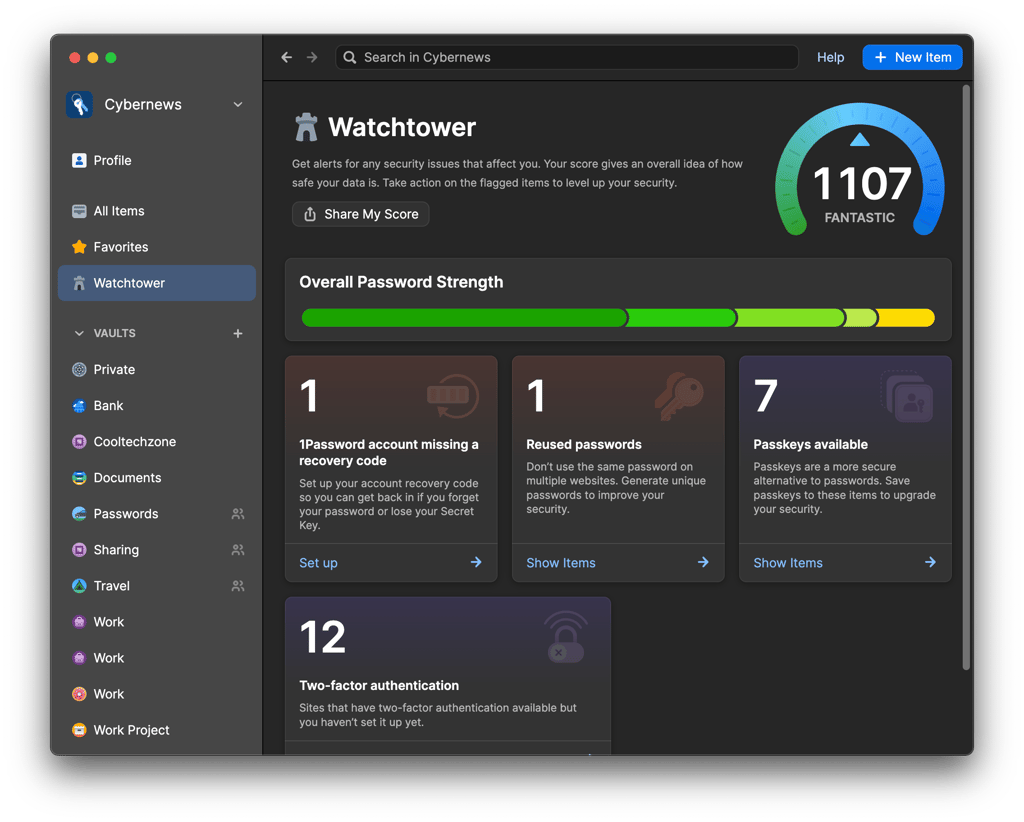
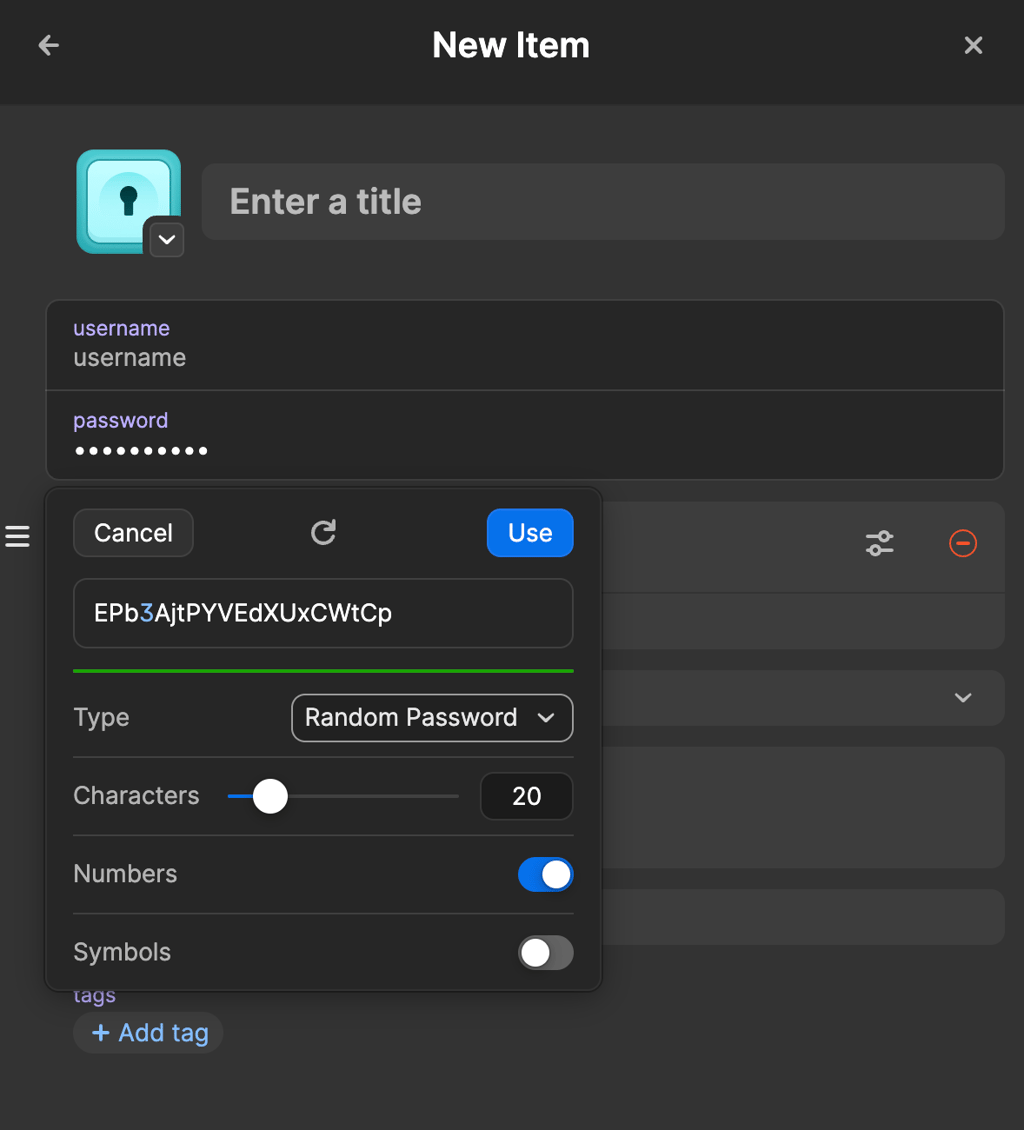
Features. 1Password includes several tools that are particularly useful for families. These include a password generator, autofill, password health monitoring via Watchtower, and secure sharing. It also has Travel Mode, which lets you hide sensitive vaults while traveling, and Privacy Cards, which safely autofill virtual credit card information.
Value for money. At $4.49/month when paid annually, the Families plan is a bit pricier than some alternatives, but the extra security layers and unique tools justify the cost for families who want peace of mind. You get five family accounts, 1GB of encrypted file storage per user, shared vaults, account recovery, and guest accounts. While it doesn’t include a free tier, the 14-day trial is a helpful way to test it with your household before committing.
Personal opinion. 1Password is a premium and modern password manager. It’s secure, easy to use, and packed with additional security tools. Watchtower dashboard, Travel Mode, and Secret Key stood out the most to me. While it’s a bit more expensive than other options, its advanced, family-friendly features make it a solid choice for households seeking a safe, intuitive, and comprehensive password management solution.
3. Keeper – highly secure password manager for families

| Rating: | |
| Family plan: | 5 accounts |
| Price: | From $3.83/month |
| Platforms: | Windows, macOS, Linux, Android, iOS |
| Coupons: | Keeper coupons |
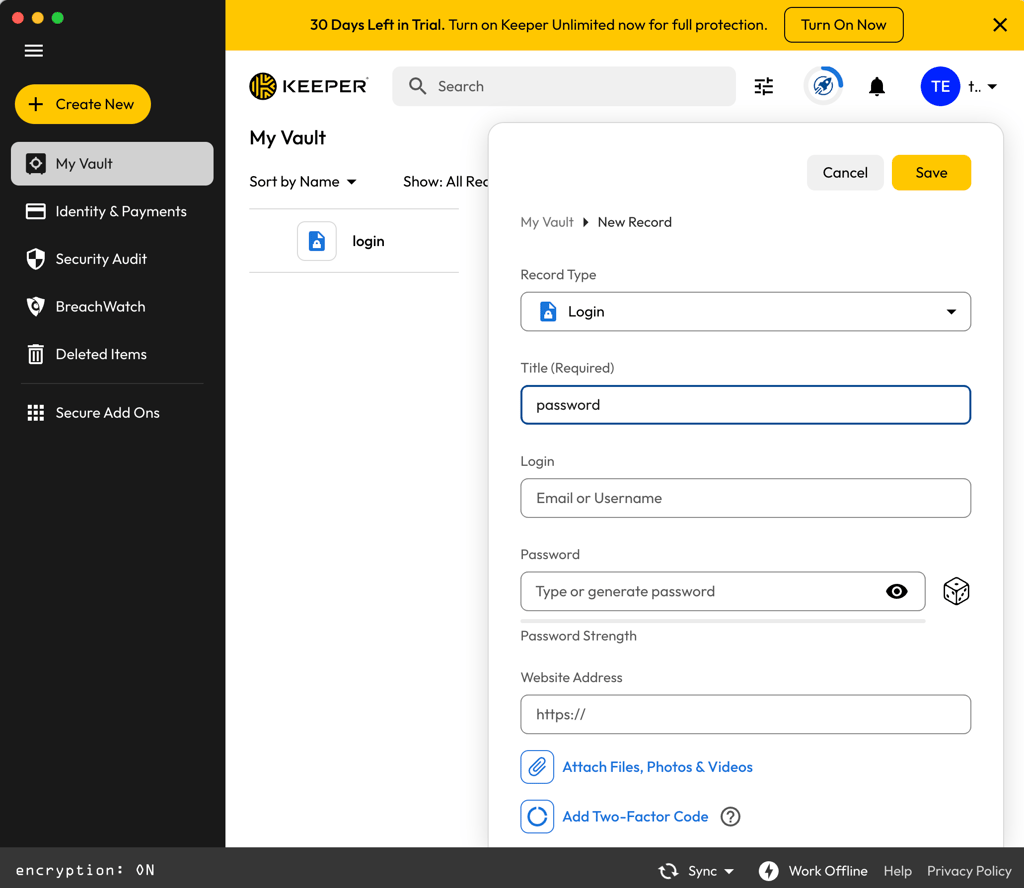
Keeper stands out as a highly secure password manager for families, with unique features. Its Family plan supports up to 5 members, and it's suitable for households that want more control over how credentials are stored and shared. The interface is fairly intuitive, and I found it easy to organize vaults and categorize passwords.
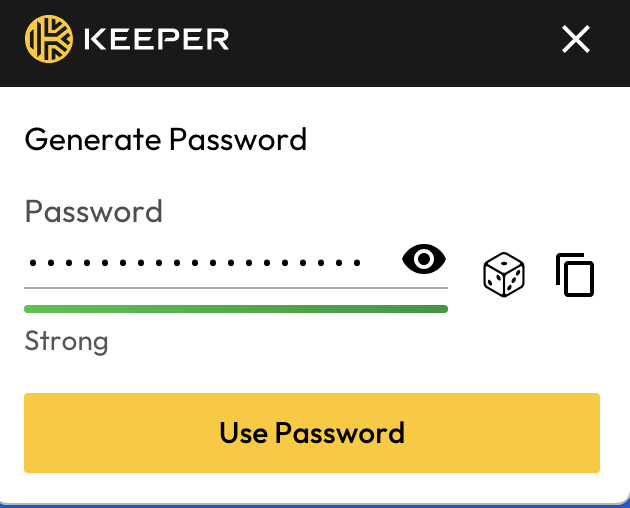
Security. Like most competitors, Keeper uses AES-256 encryption with a zero-knowledge framework, meaning only you can access your passwords. Two-factor authentication is supported through SMS, TOTP apps, hardware tokens, and smart wearables. The self-destruct feature wipes all local data after multiple failed login attempts, and each password entry has its own unique key, adding an extra layer of protection. Keeper has also undergone independent audits, with the most recent SOC 2 Type 2 audit issued in March 2026, proving its reliability.
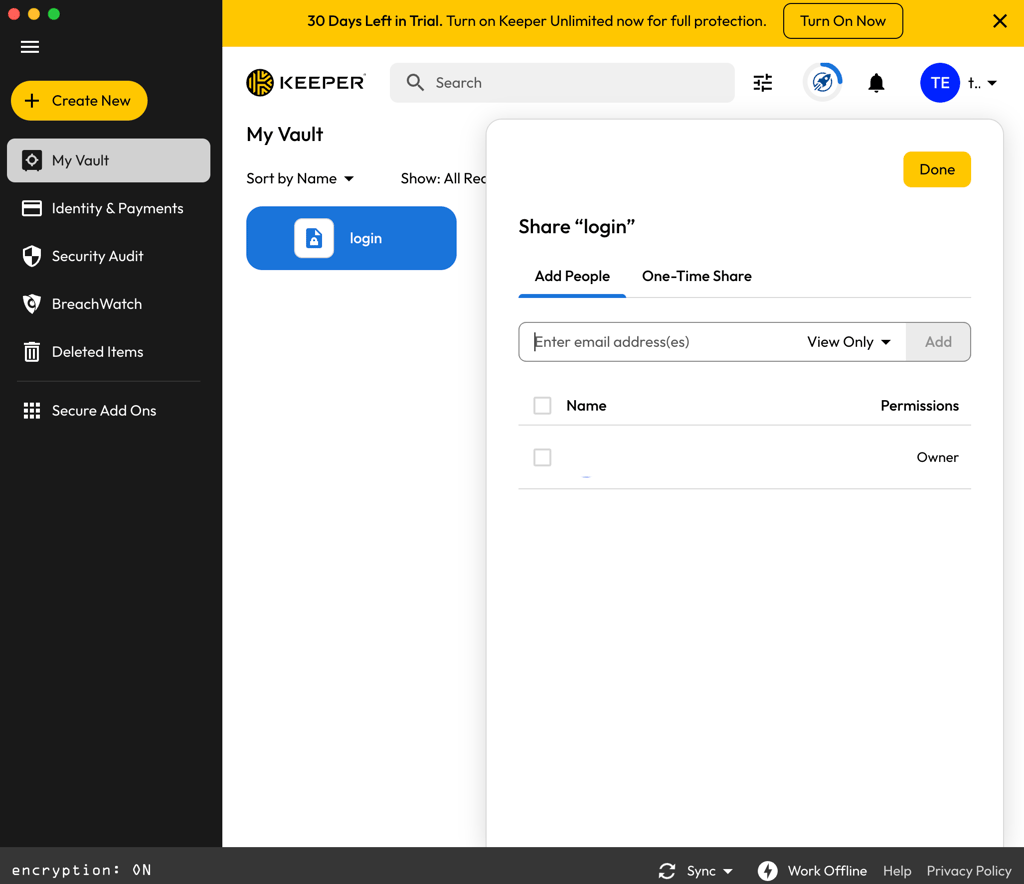
Family sharing. The Family plan allows each of the 5 users to have a private vault, while shared folders make it simple to share credentials securely. You can also use Record Types to store and autofill payment info, contact details, or documents, which is useful for managing family accounts and sensitive information. Permissions are easy to manage, though some security add-ons like BreachWatch are only available as paid extras.
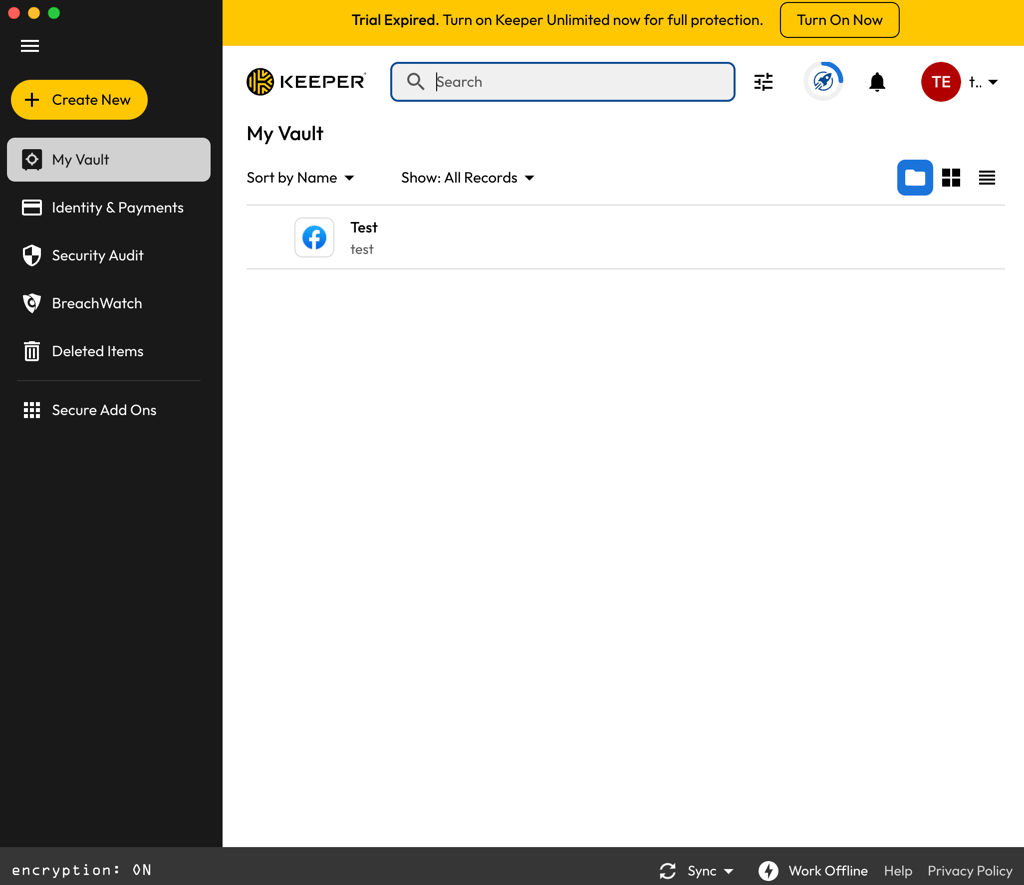
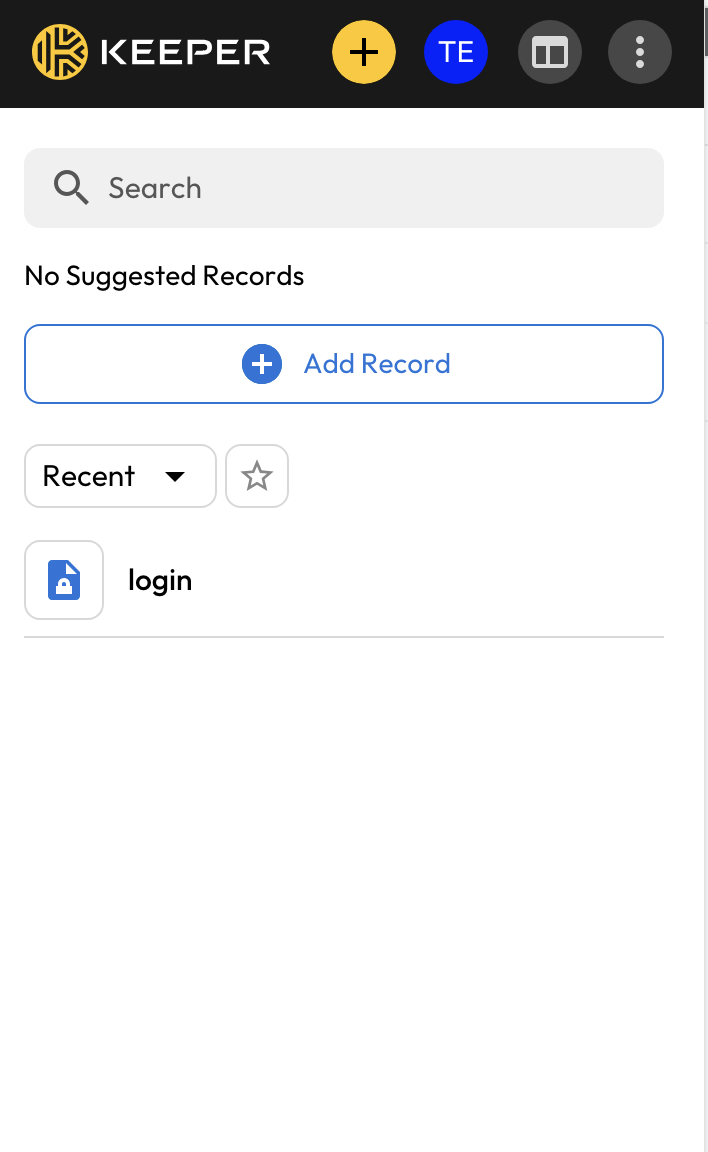
Ease of use. Keeper’s setup was straightforward, guiding me through vault creation, password import, and browser extension installation. Desktop and mobile apps are functional and mostly intuitive, though I found some features like the password generator and secure sharing options slightly buried in menus. Categorizing passwords and using the offline vault worked well once I got accustomed to the layout.
Device sync. Keeper works across Windows, macOS, Linux, Android, iOS, and all major browsers. Syncing is reliable, and offline access ensures family members can reach their vaults even without internet. Autofill and KeeperFill browser extensions performed consistently during testing.
Features. Keeper covers the essentials for families, with some unique additions. These include password generation, secure login sharing, Passkeys, Record Types for storing non-password data, offline vault access, emergency access for up to 5 contacts, a self-destruct feature, KeeperChat for encrypted messaging, and AI-powered autofill. While it offers many security-focused features, some are only available as paid add-ons.
Value for money. The Family plan costs $3.83/month with an annual subscription. You can also opt for a 2 or 3-year plan. The plan includes 10GB of secure file storage and covers 5 users, making it a good fit for small families who prioritize safety over extras.
Personal opinion. What I liked most about Keeper was the sense of control it gave me over my family’s passwords. Features like Self-Destruct, offline access, and KeeperChat were useful, especially since I used the account on multiple devices. However, I found some security tools, such as BreachWatch, a bit frustrating. Its interface could also be more straightforward for shared account management.
4. RoboForm – simple and cheap family password manager

| Rating: | |
| Family plan: | 5 accounts |
| Price: | From 1.59 |
| Platforms: | Windows, macOS, Linux, ChromeOS, Android, and iOS |
| Coupons: | RoboForm coupons |
RoboForm is a straightforward, budget-friendly password manager that covers up to 5 family members. During testing, it handled password storage, sharing, and cross-device syncing reliably, though its interface feels a bit dated, and advanced features are limited. Its low price makes it a solid choice for families who need secure, easy-to-use password management without additional tools.
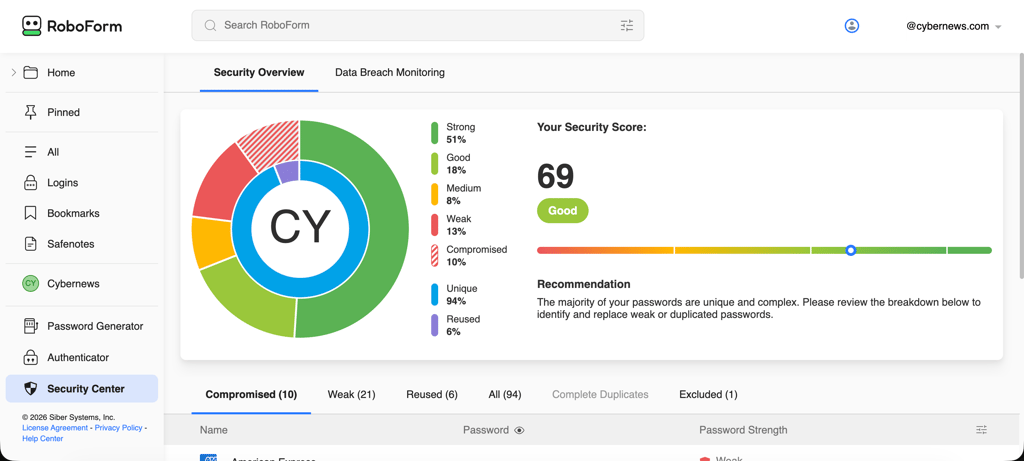
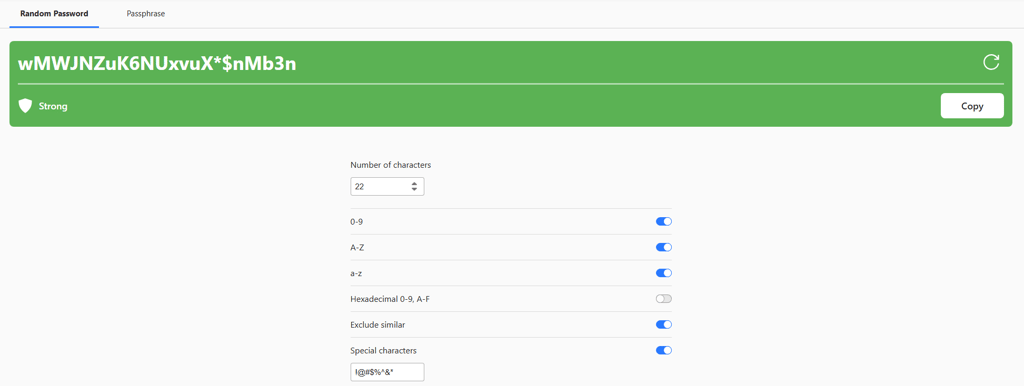
Security. RoboForm uses AES-256 encryption with PBKDF2 SHA-256 and a zero-knowledge architecture, meaning your passwords are fully private and RoboForm itself can’t access them. It supports two-factor authentication, passkeys, and emergency access, and its Security Center monitors weak, reused, or compromised passwords. RoboForm has undergone multiple independent security audits, with the latest performed in 2025, confirming its reliability.
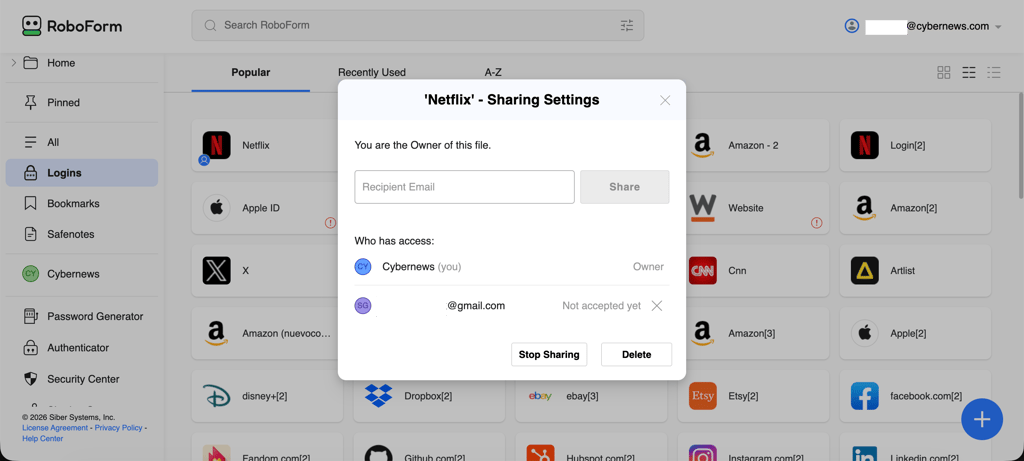
Family sharing. The Family plan supports 5 users and lets you securely share logins between accounts. Shared vaults and permissions are simple to manage, though there aren’t advanced admin tools like in some other managers. This plan makes it easy for small families to keep streaming, shopping, and other accounts accessible and organized.
Ease of use. Setting up RoboForm was quick with the guided wizard, and navigating the interface was easy once I got used to the slightly dated design. The desktop app pushes you toward using the browser extension, which can feel restrictive, and the mobile app is less smooth than the desktop experience, but both work once installed.
Device sync. RoboForm works across Windows, macOS, Linux, Android, iOS, and all major browsers. Syncing is mostly reliable, though occasionally the mobile app lags behind the desktop version. Autofill works well for most sites, and importing passwords from other managers is straightforward with clear instructions.
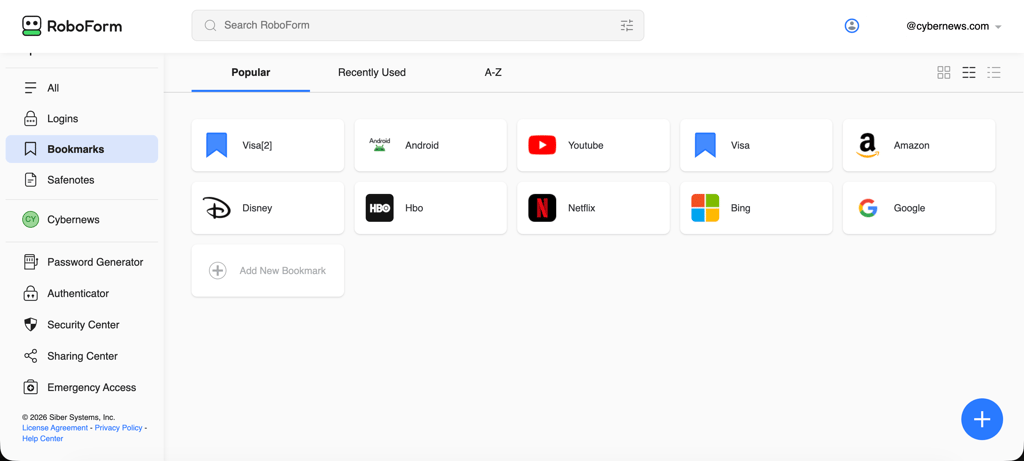
Features. RoboForm offers essential features like a password generator, Security Center, secure login sharing, emergency access, form filling, bookmarks, and a TOTP authenticator. You can store unlimited passwords, and passkeys are supported for passwordless logins. Security Center alerts you to weak, reused, or compromised passwords and helps you replace them, while the password generator can produce complex passwords or memorable passphrases. Overall, these features are basic but effective for everyday family use.
Value for money. The Family plan costs $19.10 for the first year, which is $1.59/month. This makes RoboForm one of the most affordable family password managers available, especially for basic password storage, sync, and sharing. There are also longer‑term plans that further reduce the monthly cost, and a free tier or trial options for families who want to test the service first.
Personal opinion. RoboForm is ideal for families who want simple, secure password management without paying for extra features. It’s easy to set up and use, the Security Center gives useful alerts, and the Family plan covers enough users for most small households. Its slightly dated interface and reliance on browser extensions are minor annoyances, but at this price point, it’s hard to beat.
5. Proton Pass – intuitive password manager for families with 3TB of storage space

| Rating: | |
| Family plan: | 6 accounts |
| Price: | From $4.19/month |
| Platforms: | Windows, macOS, Linux, Android, iOS |
Proton Pass is a secure, easy-to-use password manager that works well for families and stands out for its large 3 TB cloud storage, strong encryption, and helpful security features like Pass Monitor and Proton Sentinel. In my testing, it handled sharing and cross-device syncing smoothly, though some advanced features are limited compared to other premium options.
Security. Proton Pass secures your vaults with zero-knowledge architecture and AES-256 encryption, meaning only you and your family members can access your data. Proton Sentinel, an AI-powered security layer, flags suspicious logins, though it can trigger extra verification when multiple family members log in from different devices. Two-factor authentication and passkeys are supported, and independent audits by Cure53 confirm its high security standards. Proton Pass’ most recent independent security audit was conducted by Recurity Labs between January and April 2026.
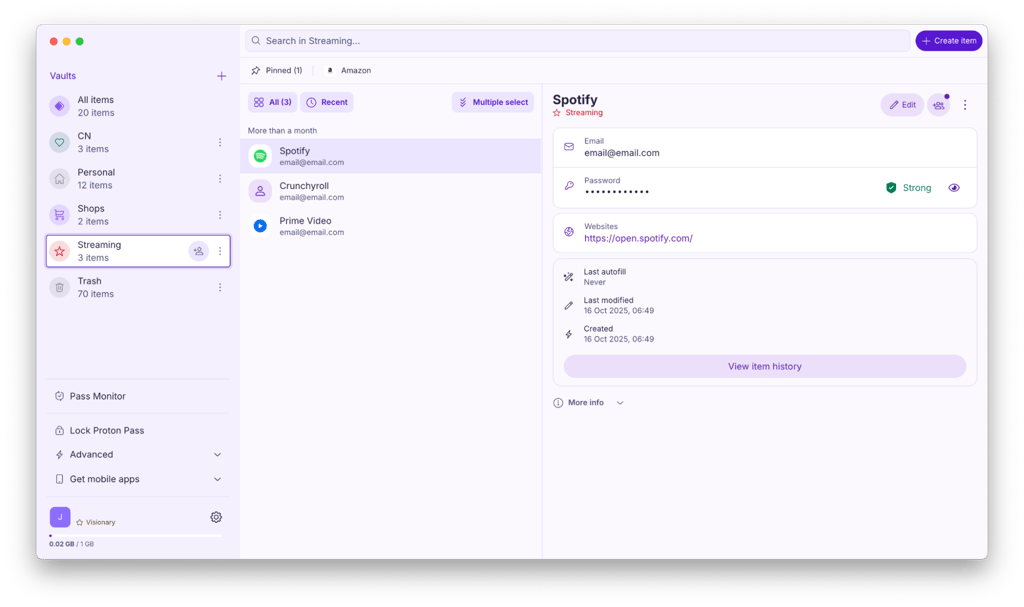
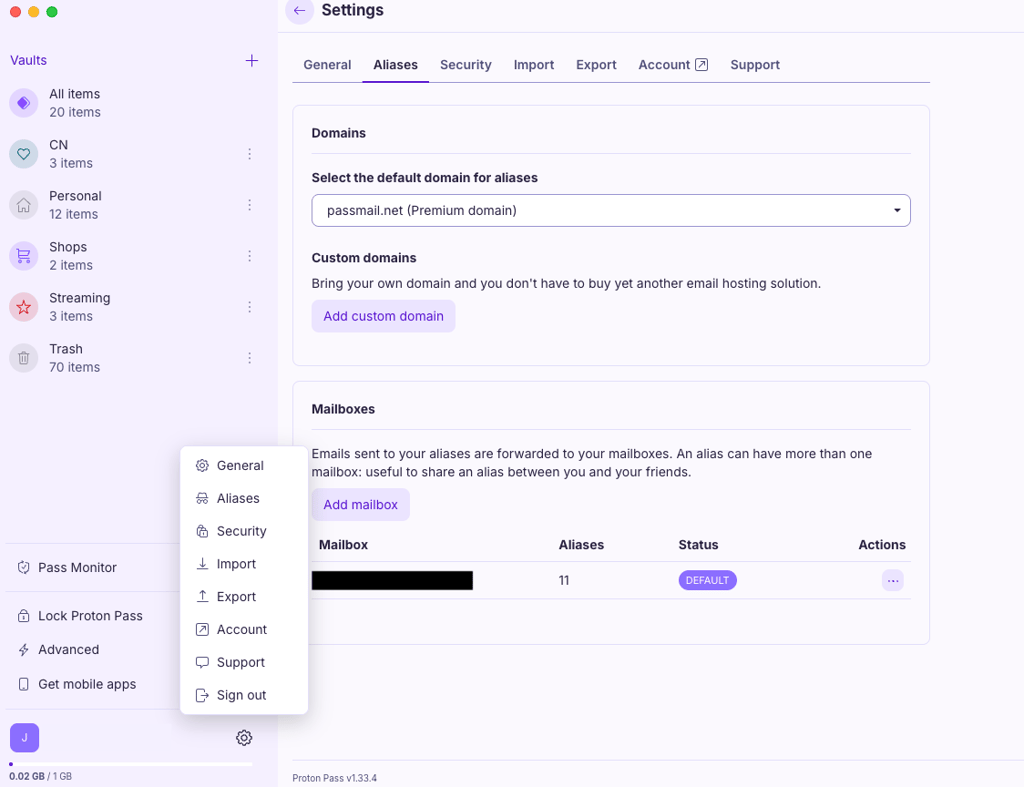
Family sharing. Proton Pass’s Family plan supports up to 6 users with a central admin panel for managing shared vaults. You can create a household vault for shared passwords, like streaming services or home accounts, while keeping personal vaults private. Setting sharing and permissions settings is simple and makes it easy for parents to manage their kids’ access.
Ease of use. Proton Pass has a clean, intuitive interface across desktop, mobile, and browser extensions, making it simple for both adults and children to use. Setting up the family account, adding passwords, and navigating between personal and shared vaults all felt quick and easy.
Device sync. During testing, Proton Pass synced reliably across Windows, macOS, Linux, Android, iOS, and browser extensions. Autofill generally worked well, though it occasionally failed to offer to save new credentials. Accessing the same vaults across all devices ensures that everyone in the family always has the latest login information.
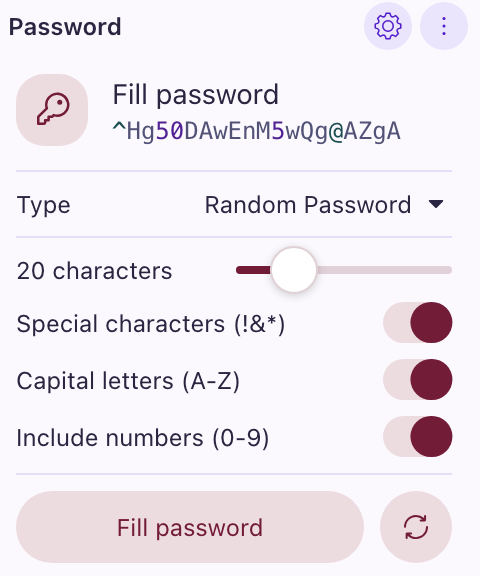
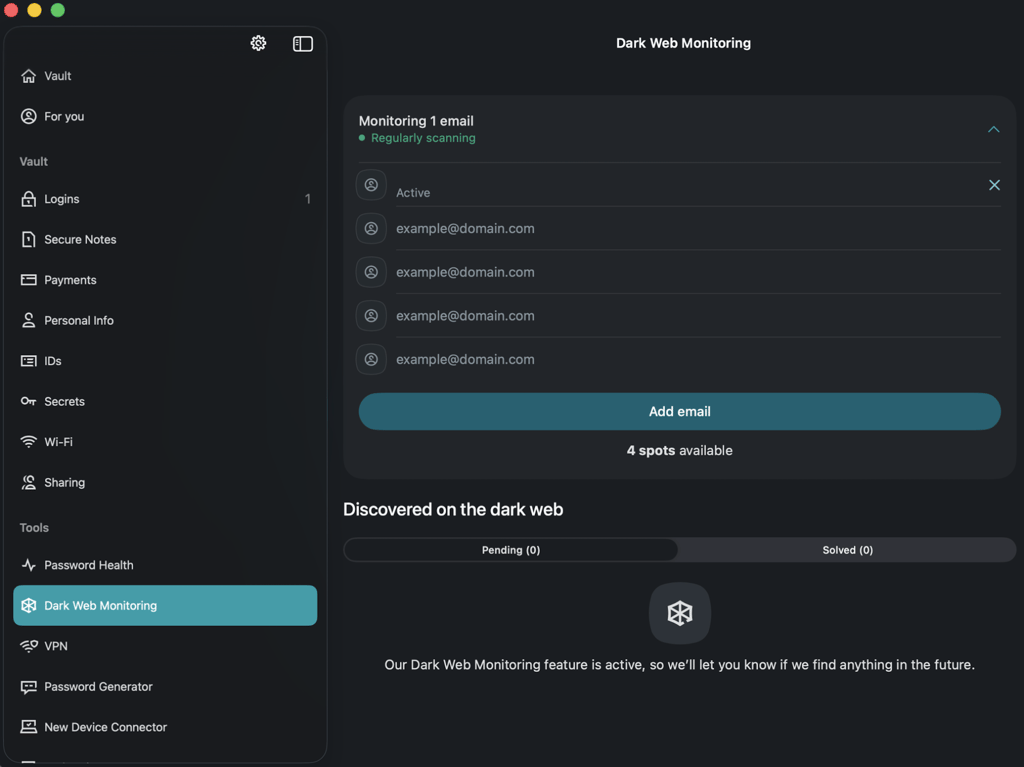
Features. Proton Pass offers a password generator that can create memorable or complex passwords. Pass Monitor flags weak or reused passwords and highlights accounts exposed in breaches, while Dark Web Monitoring alerts you if any family emails appear in leaked databases. Unlimited email aliases help protect kids’ real inboxes from spam and tracking. Emergency Access lets a trusted family member gain access if you are locked out. The Family plan also includes 3 TB of encrypted cloud storage, making it ideal for storing scans of important documents and family photos, along with passwords.
Value for money. Proton Pass’s Family plan costs $4.19/month when billed annually. This plan includes 6 user accounts and 3 TB of encrypted cloud storage, making it pricier than some competitors. Proton Pass has a free tier and offers a 30-day money-back guarantee for premium plans, allowing families to try it risk-free before committing.
Personal opinion. Proton Pass is secure, reliable, and very easy to use. Its large storage allocation, simple sharing, and privacy-focused alerts make it a good choice for families who want a straightforward password manager. Autofill inconsistencies and the lack of some advanced tools are minor drawbacks, but it’s a strong pick overall.

6. Dashlane – easy-to-use password manager for big families

| Rating: | |
| Price: | From 6.09/month |
| Family plan: | 10 accounts |
| Platforms: | Web app/browser extension, macOS, Android, iOS |
| Coupons: | Dashlane coupons |
Dashlane stands out as one of the few password managers with a family plan that covers up to 10 members, making it ideal for large households. It keeps password management simple and reliable, while still offering extras like Dark Web Monitoring, a Password Health Checker, and a built-in VPN. Its interface is intuitive across desktop and mobile apps, so even less tech-savvy family members can use it without frustration.
Security. Dashlane uses AES-256 encryption and a zero-knowledge framework, ensuring only you can access your passwords. Two-factor authentication, passkeys, and passwordless login make it easy to secure and access accounts. Dark Web Monitoring scans for leaked credentials in real time, giving families extra peace of mind. Dashlane’s most recent security assessment is its SOC 2 Type II report from 2025. The audit independently evaluated Dashlane’s security controls and practices for protecting customer data.
Family sharing. The Family plan supports up to 10 users, letting you share logins safely between accounts. Permissions are simple to manage, and all shared items can be updated or revoked at any time. This makes it easy to keep streaming, shopping, and other shared accounts organized.
Ease of use. Dashlane is straightforward to set up and navigate. The dashboard is simple, login capture works automatically in most cases, and password autofill is generally reliable. Multi-page logins can occasionally require manual input, but overall the experience is smooth and approachable for families.
Device sync. Dashlane works across Windows, macOS, Android, iOS, Linux, and all major browsers. Syncing is reliable, and the mobile apps are fully functional, so family members can access their vaults wherever they are.
Features. Dashlane doesn’t overwhelm with additional tools, but it covers the essentials for families. Its main features include a password generator, secure login sharing, Passkeys, Password Health Checker, Dark Web Monitoring, VPN, and real-time phishing alerts. Families get unlimited password storage and smooth cross-device access, keeping security simple and effective.
Value for money. The Family plan costs $97.49 for the first year, which is around $8.12/month. While it’s pricier than some other managers, it covers the most family accounts, making it a solid choice for households that need to protect more users.
Personal opinion. What I like most about Dashlane is its simplicity for families. It doesn’t overwhelm with features, making it easy for everyone, from teens to grandparents, to use. However, its real-time alerts, VPN, and password health tools gave me a lot of peace of mind and proved reliable.

7. Bitwarden – basic and cheap password manager for families

| Rating: | |
| Price: | From $3.99/month |
| Family plan: | 6 accounts |
| Platforms: | Windows, macOS, Linux, Android, iOS |
Bitwarden supports up to 6 family members and focuses on core password management features with strong security. It’s open-source, so its code can be independently inspected, which adds transparency and trustworthiness. However, I rated it lower on this list because it doesn’t offer automatic backups, full-featured desktop apps, or large file storage, which makes it less convenient than some premium managers.
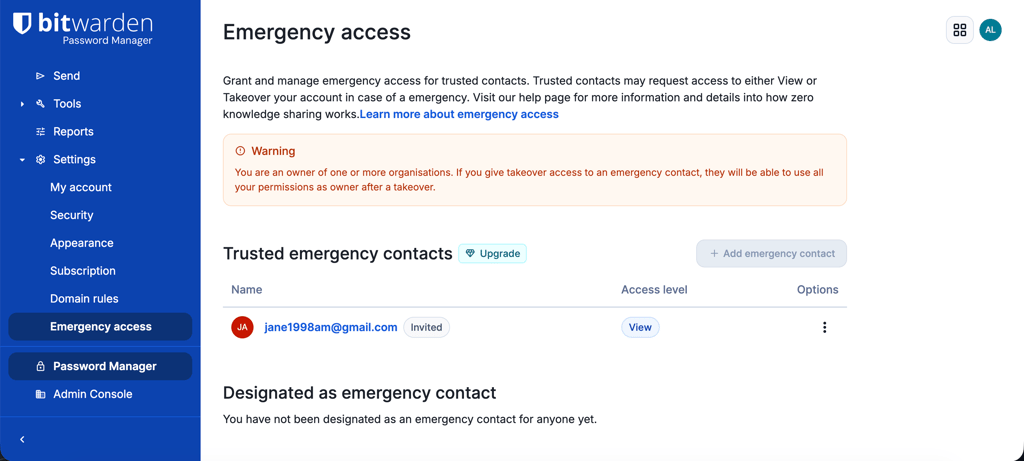
Security. Bitwarden encrypts data using AES-256 and employs a zero-knowledge architecture, ensuring only you can access your vault. It supports two-factor authentication, passkeys, and biometric login across devices. Emergency Access allows trusted family members to recover your vault if you lose your master password. Vault Health Reports monitor password strength and reused credentials. Auto-fill is disabled by default due to past security concerns, where malicious website frames could trick the feature into revealing credentials. Bitwarden undergoes regular independent security audits, with multiple assessments completed in 2025
Family sharing. The Families plan allows password sharing across 6 users. Shared vaults are organized using collections, where permissions can be adjusted for each member. This makes it possible to group shared accounts, such as streaming services, banking, or household logins, and control who can access them. Bitwarden Send also allows sharing encrypted messages or files with anyone, including non-Bitwarden users.
Ease of use. Setting up Bitwarden is straightforward: after creating an account, you establish a master password and import credentials. The web app offers the most features, while desktop apps have fewer tools, so the web app is required for tasks like setting up multi-factor authentication. Mobile apps on iOS and Android are fully functional, with password storage, secure notes, autofill, biometric login, and Bitwarden Send accessible.
Device sync. Bitwarden works across Windows, macOS, Linux, iOS, Android, and all major browsers. Syncing is reliable, though some desktop features are limited compared with the web app. I rated device sync slightly lower because while credentials update consistently across devices, desktop apps don’t always provide the full functionality, which wasn’t convenient for some plan members.
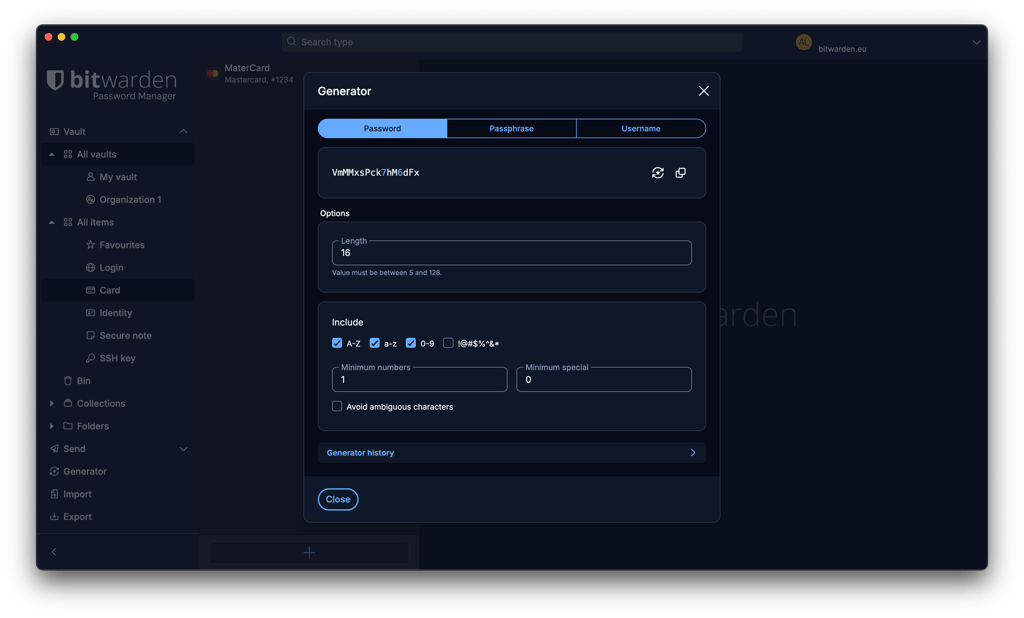
Features. Bitwarden offers essential features for families, such as a password generator, passkeys, secure password sharing, Bitwarden Send, biometric login, two-factor authentication, fingerprint phrases, emergency access, and Vault Health Reports. The Families plan also includes 10 GB of encrypted storage for attachments, split between 5 GB personal storage and 5 GB for shared organization files and attachments.
Value for money. The Families plan costs $3.99/month when purchasing an annual plan. This includes all premium features at a low price, though storage limitations and less feature-rich desktop apps make it less convenient than some higher-tier options. Bitwarden also offers a 7-day free trial and a 30-day money-back guarantee.
Personal opinion. Bitwarden provided all the security I needed for my family's credentials, and I appreciated being able to inspect its open-source code. It’s reliable for managing passwords across multiple devices, but the desktop apps feel restricted, auto-fill isn’t as seamless as competitors like NordPass or 1Password, and sharing passwords between family members requires extra setup, which may be challenging for less tech-savvy users.
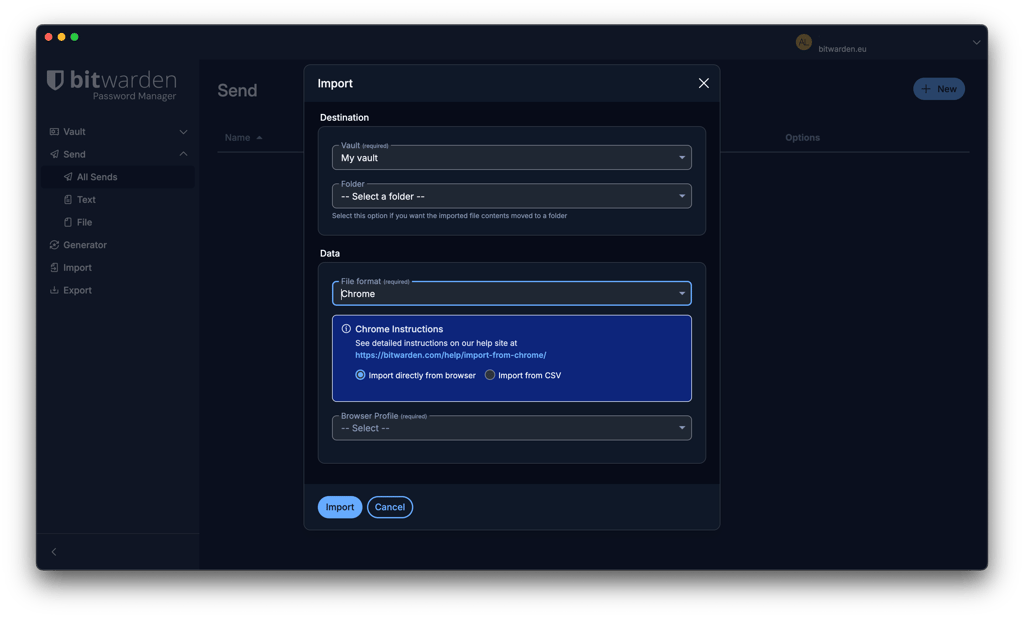
Family password managers compared
Here’s a quick overview of all 7 providers across their main aspects:
| Family password manager | Overall rating | Family plan price | Users | Free trial | Family management dashboard | Multiple vaults | Password sharing | Encrypted storage |
| NordPass | From $2.32/month | Up to 6 | ✅ Yes | ✅ Yes | ✅ Yes | ✅ Yes | ✅ 3GB (with NordLocker app) | |
| 1Password | From $4.49/month | Up to 5 | ✅ Yes | ✅ Yes | ✅ Yes | ✅ Yes | ✅ 1GB | |
| Keeper | From $3.83/month | Up to 5 | ✅ Yes | ✅ Yes | ✅ Yes | ✅ Yes | ✅ 10GB | |
| RoboForm | From $1.59/month | Up to 5 | ✅ Yes | ✅ Yes | ✅ Yes | ✅ Yes | ❌ No | |
| Proton Pass | From $4.19/month | Up to 6 | ✅ Yes | ✅ Yes | ✅ Yes | ✅ Yes | ✅ 3000GB | |
| Dashlane | From 6.09/month | Up to 10 | ✅ Yes | ✅ Yes | ✅ Yes | ✅ Yes | ✅ 1GB | |
| Bitwarden | From $3.99/month | Up to 6 | ✅ Yes | ✅ Yes | ✅ Yes | ✅ Yes | ✅ 1GB |

What is a family password manager?
Simply put, a password manager is an app that stores your login credentials in a secure, end-to-end encrypted vault. A family password manager is essentially a family plan that supports multiple users and lets you securely share login credentials with each other. Here’s how it works.
After creating an account, you add your login credentials. You can do this manually, by typing them directly into the vault, or you can go to a website and log in. This will prompt the password manager to ask you if you want to save these login details with a single click, also known as autosave. This feature also updates your passwords in the vault when you change them on the website.
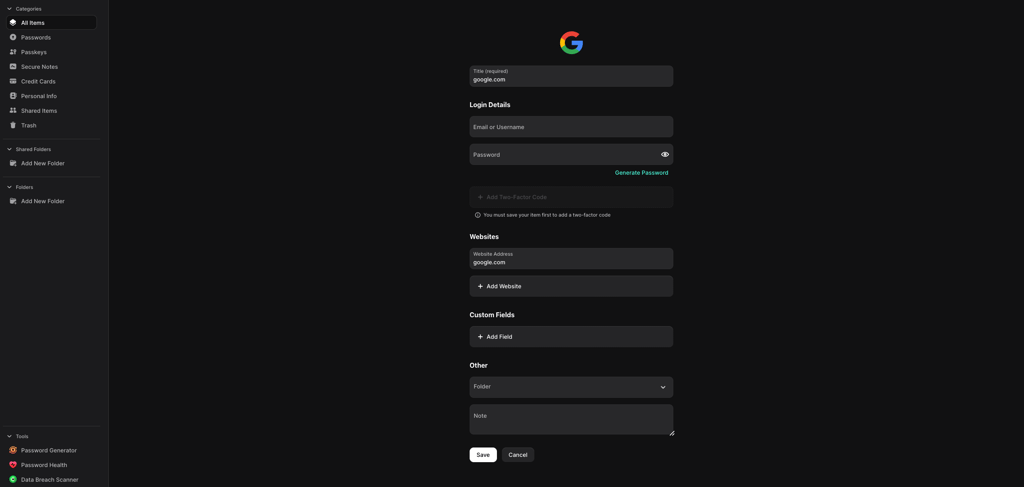
If you’re creating a new account, a password manager will generate a strong password and save the login credentials in your vault.
This vault is highly secure – each password is encrypted on your device, meaning that even if a malicious hacker got your passwords, they wouldn’t be able to read them.
Even if you lose your device, your login credentials are secured behind a master password. Plus, many of them have a self-destruct feature that can be triggered remotely or after a certain number of failed login attempts.
You can also use the password generator to update weak and reused passwords. Password generators are the staple of every password manager, allowing you to create unique and complex passwords for each of your accounts, increasing overall security.

Final verdict
So, what is the best password manager for a family? It's all about the balance between security, ease of use, and price. It should also cover from 5 to 10 users and have not only a shared vault but also a personal one for each of them.
I would recommend NordPass as a family password manager with its advanced security layers for both passwords and online browsing and straightforward navigation. It’s easy to use for kids, senior family members, or anyone not tech-savvy.
FAQ
How do family password managers work?
Family password managers allow you to have multiple users within the same account, with each user having a personal vault that others can’t access. The service is highly secure and enables the sharing of login credentials and other sensitive information among family members.
What is the easiest password manager for families?
NordPass is the most intuitive password manager that’s easy to use even for less tech-savvy users. With a user-friendly interface, all features are easily accessible. Plus, you get excellent cross-platform functionality, so it’ll work with any device.
How do you share passwords between family members?
To share passwords between family members, send an invitation link to a family member and have them accept it. A reputable service provider should then do the rest, safely storing and organizing saved passwords so they would always be secure and easily accessible.
Can two people share a password manager?
Yes, two people can share a password manager when subscribing to a family plan. Although some password managers allow storing unlimited passwords and syncing them across multiple devices, there’s only one password vault. Hence, a couple of users should use a multi-user password manager that allows having separate vaults.