Best password managers for Mac in 2026

The number of online accounts we use keeps growing, making it nearly impossible to remember every password. While Apple's built-in password manager works well across Macs, iPhones, and iPads, it becomes more limiting if you also use Windows or Android devices.
I started looking for the best password managers for Mac after switching between my MacBook and a Windows laptop. That's when I realized third-party password managers offer much better cross-platform support, along with features like secure password sharing, passkey support, dark web monitoring, and encrypted vaults.
In this guide, I tested and reviewed the 8 best password managers for Mac in 2026 to help you decide whether upgrading from Apple's built-in solution is worth it.
Top 5 Mac password managers in 2026
These are the best password managers for MacBook that I tested, each offering different strengths for different needs, but all delivering strong security, smooth macOS compatibility, and easy day-to-day use.
- NordPass – overall best password manager for Mac in 2026
- 1Password – Mac password manager with the best features
- RoboForm – low-cost Mac password manager
- Proton Pass – best free privacy-first Mac password manager
- Keeper – Mac password manager with advanced business controls
Here’s a quick side-by-side look at the key differences, including pricing, features, and where each Mac password manager stands out.
| Mac password manager | Rating | Integration with macOS | Free version | Pricing | Cloud storage | Notable features |
| NordPass | ✅ Yes | ✅ Yes | From $1.29/month | ✅ Yes, 3GB | Cross-platform compatibility, independently audited, Password Health, Data Breach Scanner, and Passkey support | |
| 1Password | ✅ Yes | ❌ No | From $2.99/month | ✅ Yes, 1–5GB | Dark web monitoring, shared vaults, secure item links, and Emergency Access | |
| RoboForm | ✅ Yes | ✅ Yes | From $0.99/month | ❌ No | One-click login, password generator, and shared folders | |
| Proton Pass | ✅ Yes | ✅ Yes | From $2.49/month | ✅ Yes, 1–500GB | Privacy-focused, independently audited, email aliases, and Proton Sentinel | |
| Keeper | ✅ Yes | ✅ Yes | From $1.79/month | ✅ Yes, 10–100GB | Security audit, data breach monitoring, and deleted password recovery | |
| Dashlane | ✅ Yes | ❌ No | From $4.06/month | ✅ Yes, 1GB | Password generator, VPN, and dark web monitoring | |
| Bitwarden | ✅ Yes | ❌ No | From $1.65/month | ✅ Yes, 1GB plus an additional 1GB for Organizational items | Independently audited, open-source, Bitwarden Send, and self-hosting option | |
| Bitdefender SecurePass | ✅ Yes | ❌ No | From $2.50/month | ❌ No | AES-256 encryption, zero-knowledge architecture, biometric authentication, Security Report, and Lock account feature |

Why switch to a third-party password manager on Mac
Apple now includes its own password manager across iOS and macOS, which raises a fair question: do you still need a separate password manager? The short answer is yes, especially if you value more advanced security and broader control options. Here’s how third-party password managers work:
- Cross-platform sync. The Apple Passwords app is locked in the Apple ecosystem. It’s super convenient if you’re exclusively using Apple products, but it's impossible to use across different operating systems.
- Better security. Third-party password managers include advanced features such as password health, dark web monitoring, and data breach scanning. They also support MFA and can be secured with nearly impenetrable hardware keys. Plus, Apple Passwords doesn’t have a master password, which makes it more vulnerable.
- Sharing passwords is easier. Apple Passwords only lets you share items with other Apple users. Third-party password managers offer multiple ways to securely share login credentials with friends, family, and co-workers, even if they use Android or Windows devices.
- Priority customer support. Apple customer support is more general across its entire ecosystem, so getting appropriate help might take a while. Third-party password managers have dedicated troubleshooting teams, and their agents are trained to deal with issues specific to password managers, so you should get your queries solved fairly quickly. Plus, most of them provide a comprehensive help center with common issues and step-by-step guides.
Recent Updates
Mac password managers – detailed list
Here at Cybernews, we have reviewed 20 password managers. Together with our research team, I handpicked the best password managers for Mac and evaluated them further. We considered security measures, user experience, plans and pricing, and the overall price-to-value ratio. Below, you’ll find an overview of our testing results.
1. NordPass – overall best password manager for Mac in 2026

| Rating: | |
| Platforms: | Windows, macOS, Linux, Android, iOS |
| Extensions: | Chrome, Edge, Firefox, Opera, Safari |
| Encryption: | xChaCha20 |
| Premium plan price starts: | From $1.29/month |
NordPass tops my list for Mac password managers for a simple reason – it offers the most balanced package at the best price point. It has intuitive, easy-to-use apps for both Mac and iPhone, along with user-friendly extensions for Safari and Chrome, giving you a convenient way to create, store, and autofill passwords across your devices and operating systems with a Premium subscription.
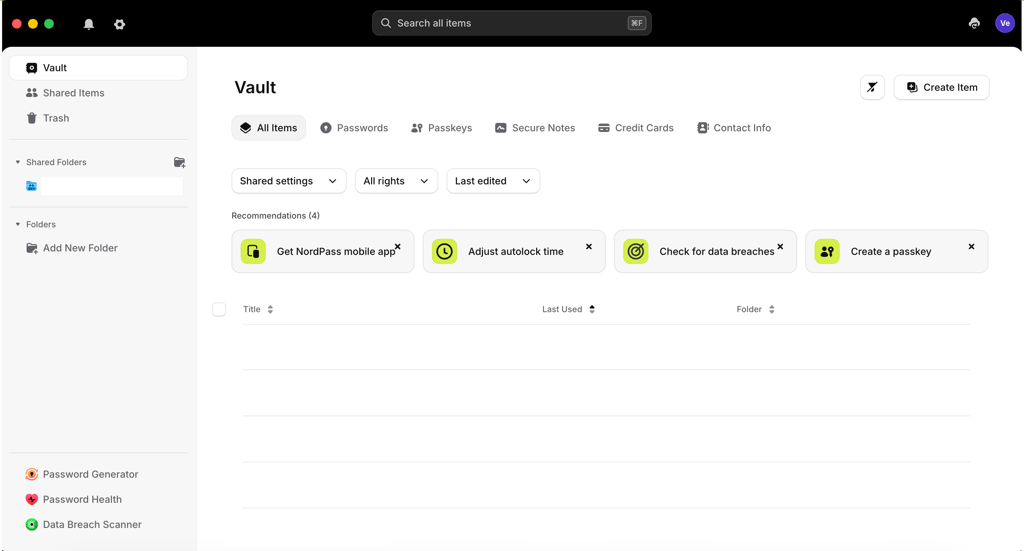
NordPass uses the modern XChaCha20 encryption and follows a strict no-logs policy that has been audited 3 times, ensuring the highest security standard for your Mac laptop. Similar to the other password managers on my list, NordPass has a Password Health feature that monitors and audits the strength of your passwords.
In addition to securing your credentials, NordPass offers a few useful extras. The Email Masking feature allows you to create alias email addresses that protect your real inbox and reduce spam, tracking, and unwanted exposure. Dark Web Monitoring is another useful feature that checks whether your information appears in known data breaches and alerts you if your credentials are exposed.
I would recommend NordPass to any Mac user who prioritizes security and a simple and consistent app design across Apple and other operating systems.
NordPass pricing begins with a free tier that lets you store an unlimited number of passwords, but is limited to single-device use only, followed by $1.29/month for Premium, which unlocks all advanced features.
2. 1Password – Mac password manager with the best features

| Rating: | |
| Platforms: | Windows, macOS, Linux, Android, iOS |
| Extensions: | Chrome, Firefox, Edge, Brave, Safari |
| Encryption: | AES-256 |
| Premium plan price starts: | From $2.99/month |
1Password is the most feature-rich Mac password manager on this list. Its macOS app is super clean, offers reliable Safari support, and, of course, strong security tools in a package that is fit for an Apple user. Compared with NordPass, 1Password gives you more control and stronger workflow features, especially if you manage a lot of logins across devices, albeit at a steeper price point.
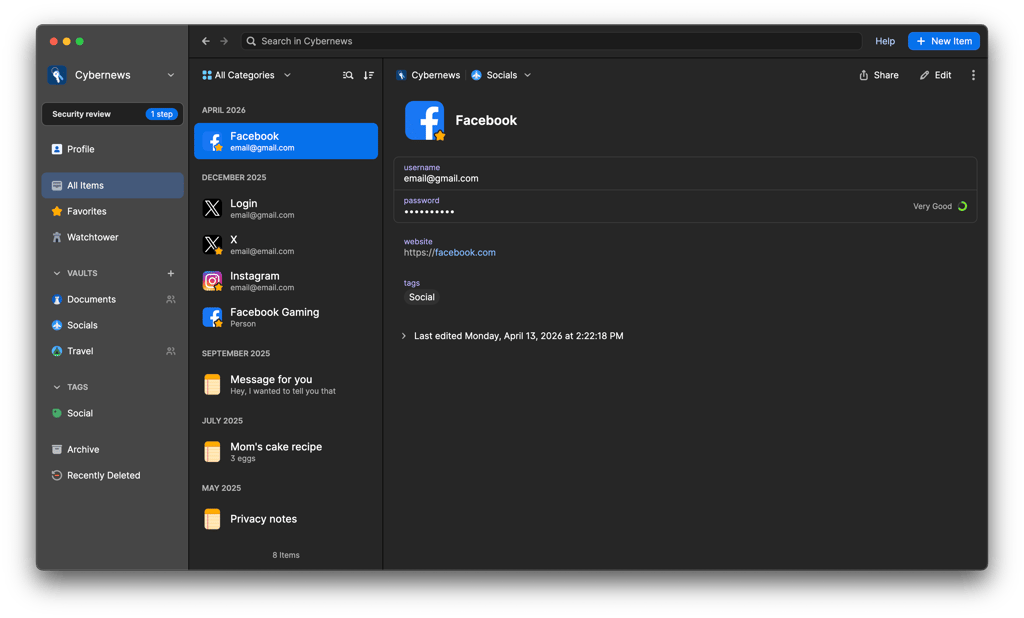
1Password also takes security seriously. It uses AES-256 encryption, a zero-knowledge architecture, and a Secret Key that adds another layer of protection. Watchtower checks for weak, reused, or compromised passwords, while Travel Mode helps remove sensitive vaults from your device before you travel. The platform also regularly undergoes independent third-party security audits to verify its security practices and maintain transparency.
During 1Password testing, the usability across MacBook, iPhone, and iPad was seamless. The app matched macOS well, and Touch ID unlock worked without friction. Its Universal Autofill fills credentials in both desktop apps and browsers, correctly identifying fields without needing to hold its hand.
Generally, it is best for Mac users who want a premium password manager with advanced features and a clean Apple-friendly design at a premium price. 1Password pricing starts at $2.99/month, billed annually, all covered by a humble 14-day free trial, giving you some time to test it out.
3. RoboForm – low-cost Mac password manager

| Rating: | |
| Platforms: | Windows, macOS, Android, iOS |
| Extensions: | Chrome, Firefox, Edge, and Safari |
| Encryption: | AES-256 |
| Premium plan price starts: | From $0.99/month |
RoboForm is one of the best budget password managers for Mac users who care more about the actual utility than extras. If pitted against 1Password, it’s less refined, but it handles all of the password manager must-haves with ease. It is a strong pick if you want a simple tool that gets the job done without pushing the price up.
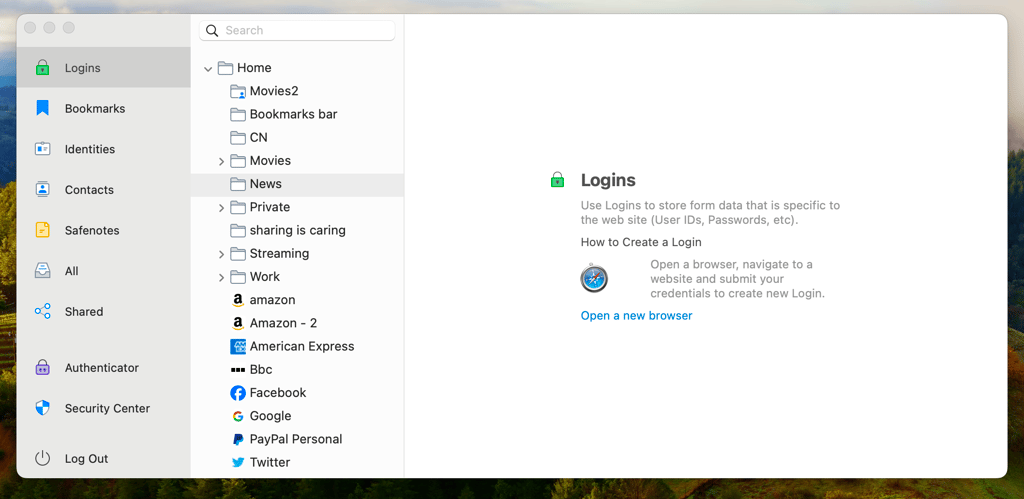
RoboForm doesn’t compromise on security. It uses AES-256 encryption with PBKDF2-SHA256 to strengthen your master password and make brute-force attacks significantly harder. Its Security Center helps identify weak and reused passwords, while built-in TOTP support lets you store authentication codes alongside your logins. RoboForm also undergoes independent security audits to verify its security practices.
During RoboForm review, Safari autofill was fast, and the browser extension adapted well to logins, identities, and long checkout forms. The app itself looks a bit dated compared to the providers above, but the workflow is easy to learn, and local-only storage gives privacy-focused users more control over where their data lives.
RoboForm’s paid plan starts at $0.99/month, supports unlimited devices, and includes a 30-day money-back guarantee. It also offers a completely free plan, so you can truly test it out without any pressure.
4. Proton Pass – best free privacy-first Mac password manager

| Rating: | |
| Platforms: | Windows, macOS, Linux, Android, iOS |
| Extensions: | Chrome, Firefox, Brave, Edge, Safari |
| Encryption: | AES-256-GCM |
| Premium plan price starts: | From $2.49/month |
Proton Pass stands out a bit differently for Macs from most providers on this list. Rather than competing on the scope of its features, it heavily leans into privacy, transparency, and one of the best free plans available. You get unlimited password storage on the free tier, unlimited device syncing, and even 10 hide-my-email aliases, which is a rare perk among password managers that works well on macOS and across other platforms.
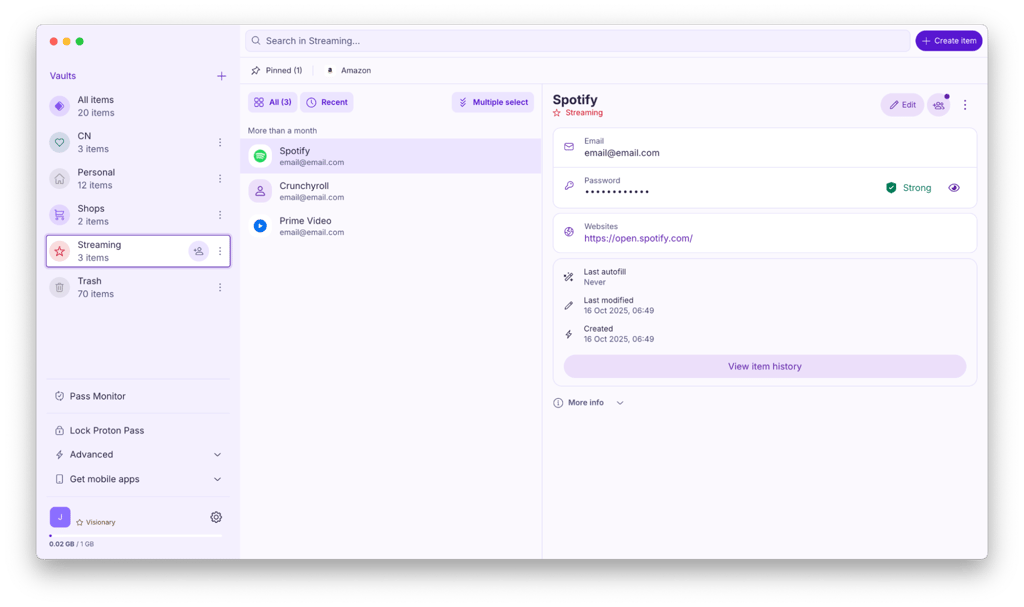
As for security, Proton Pass uses end-to-end AES-256-GCM encryption, follows a zero-knowledge model, and is open source with independent audits, which provides much greater (and needed) transparency than most providers. Features like Proton Sentinel and built-in email aliasing also push it further into privacy territory.
During Proton Pass testing, the macOS app was clean and lightweight, with a more polished desktop app experience than some browser-first rivals lower on this list. Autofill was smooth in Safari, and syncing across devices was fast as expected.
Where it loses some ground is in maturity. Compared with longer-established providers in the same price range, some features and refinements are still less developed, and human support is limited to tickets rather than live chat, unlike top providers such as NordPass.
Still, when it comes to core password management features, Proton Pass does the essentials very well, even on its free plan. Paid plans start at 2.49/month and include a 30-day money-back guarantee, but with such a capable free tier, trying it out comes with no risk.
5. Keeper – Mac password manager with advanced business controls

| Rating: | |
| Platforms: | Windows, macOS, Linux, Android, iOS |
| Extensions: | Chrome, Firefox, Safari, Opera, Edge, Brave |
| Encryption: | AES-256 |
| Premium plan price starts: | From $1.79/month |
Keeper makes the most sense for macOS users who want a password manager that handles sharing and organization really well. It works smoothly across Mac and iPhone, with browser extensions that make it easy to store, generate, and autofill passwords across different devices, but the real strength is how easily you can manage multiple vaults and share access securely.
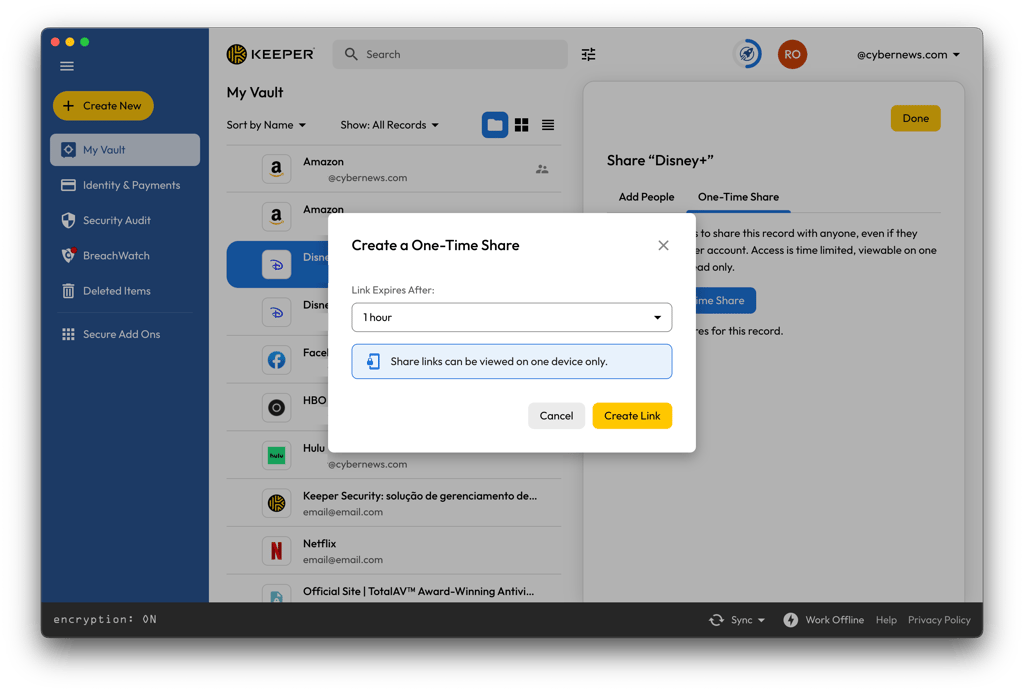
Similar to most providers on my list, Keeper uses AES-256 encryption with a zero-knowledge architecture, so your data is encrypted and decrypted locally on your macOS. What adds to that is BreachWatch, which flags compromised passwords, along with a built-in authenticator that keeps your login codes in the same place as your vault.
Keeper's ease of use is very much tailored for macOS. When I was testing it out, Touch ID login was fast, and KeeperFill handled saved logins without much extra work. Besides the basics, what really makes Keeper different is how granular its sharing is.
You can share a single password or an entire folder, set permissions like view/edit/share, and even create time-limited or self-destructing access. There’s also a One-Time Share feature that lets you send encrypted credentials to someone who doesn’t even have a Keeper account, with links that expire automatically.
Keeper’s Personal plan starts at $1.79/month, but unfortunately, it’s not covered by a money-back guarantee. However, there’s also a free plan, so you can have a limited test run before committing.
6. Dashlane – Mac-friendly password manager with a VPN

| Rating: | |
| Platforms: | Web app/browser extension, macOS, Android, iOS |
| Extensions: | Chrome, Edge, Firefox, Safari, and Brave |
| Encryption: | AES-256 |
| Premium plan price starts: | From $4.06/month |
Dashlane is one of the most feature-packed options on my list for Macs. It’s especially a good pick if you want more than just a password manager, combining password storage with extras like Dark Web Monitoring, phishing alerts, and a VPN on selected plans. This gives it an edge, even when pitted against 1Password.

Speaking of its VPN, it’s not a native Dashlane product but is powered by a partnership with Hotspot Shield, so do bear in mind Hotspot’s limitations and pros before committing.
As for security, it uses AES-256 encryption and a zero-knowledge architecture, so only you can safely access your vault. It also includes Dark Web Monitoring to alert you if your personal information appears in known data breaches. The company also regularly undergoes independent security audits to verify its security practices and maintain transparency.
During the Dashlane review, I found myself relying more on the browser experience than the macOS app. The app is still available, but Dashlane’s web-first approach puts more emphasis on the browser extension for managing logins and autofill. On Safari, the Smart Extension worked smoothly, quickly suggesting saved credentials when I clicked into login fields.
Its biggest drawback, though, is Dashlane’s pricing, which starts at $4.06/month and is noticeably higher than many competitors on this list. That said, Dashlane includes a 30-day money-back guarantee, so you can decide whether the extra features justify the cost.
7. Bitwarden – open-source password manager for Mac

| Rating: | |
| Platforms: | Windows, macOS, Linux, Android, iOS |
| Extensions: | Chrome, Firefox, Edge, Opera, Safari, Vivaldi, Brave, Tor, DuckDuckGo |
| Encryption: | AES-256-CBC |
| Premium plan price starts: | From $1.65/month |
Bitwarden Password Manager is an open-source password manager for macOS with simple, cross-device syncing. It works across macOS, iPhone, iPad, and other platforms, with a less flashy but more practical experience.
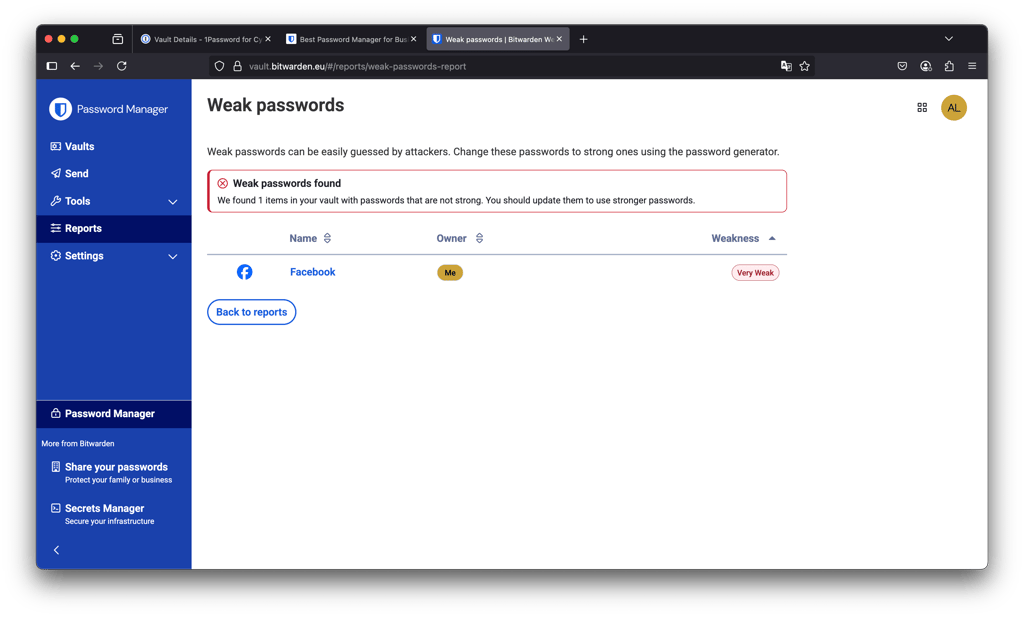
What makes Bitwarden Password Manager really stand out is its open-source model and the amount you get without paying. It uses AES-256-CBC encryption with a zero-knowledge architecture, but what is really surprising is that the free plan includes unlimited passwords and unlimited devices, which is still rare at this level.
During the Bitwarden review, Touch ID worked on macOS after enabling biometric unlock in the app, and it also carried through to supported workflows once everything was set up. Autofill and password handling were reliable, although the experience remains more bare than tightly integrated into the macOS system-level design.
Bitwarden Password Manager also includes Bitwarden Send, which lets you share encrypted text, files, or links without relying on email or chat apps. The paid tier adds extras like built-in authenticator codes, encrypted storage, and security reports for users who want more oversight.
Overall, Bitwarden Password Manager is best for Mac users who care more about transparency and value than a premium interface. Pricing starts at $1.65/month, but the free plan is good enough for many people.
8. Bitdefender SecurePass – basic Mac password manager for individuals

| Rating: | |
| Platforms: | Windows, macOS, Android, iOS |
| Extensions: | Chrome, Edge, Firefox, Safari |
| Premium plan price starts: | From $2.50/month |
Bitdefender SecurePass is a very basic Mac password manager, and that is also its main limitation. It covers essentials like password storage, autofill, and secure sharing, but it is more like a companion to Bitdefender’s wider security ecosystem than a fully standalone product.
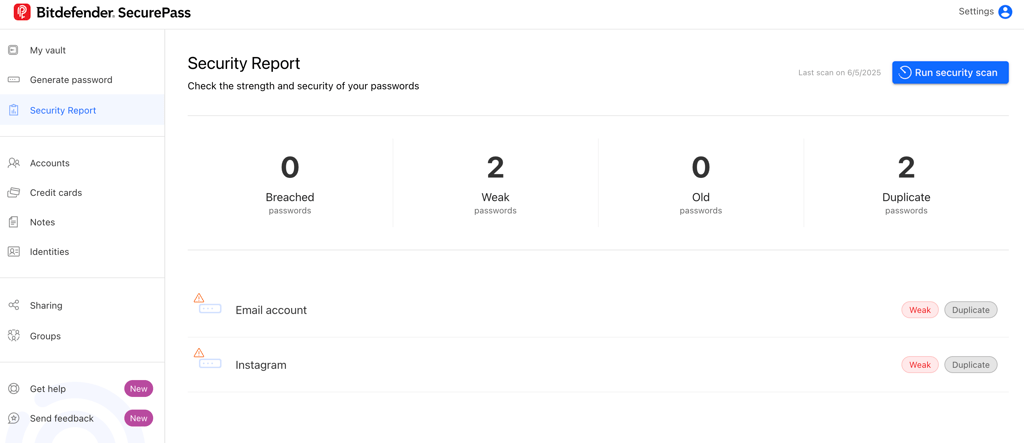
Bitdefender SecurePass uses AES-256-CCM encryption with a zero-knowledge architecture. Like most providers in my list, it also applies client-side end-to-end encryption, meaning data is encrypted directly on your device before being sent to the cloud, and only your master password can unlock it.
During Bitdefender SecurePass testing, the browser extension was easy to use, but the experience didn’t feel especially polished. It works on Safari and other major browsers, plus iOS and Android, but it lacks a standalone desktop app, which makes it less complete than more mature password managers on this list.
SecurePass’ pricing starts at $2.50/month when billed yearly, with a 30-day money-back guarantee. There is no free plan, so testing is slightly more limited than with some competitors. What really is a bummer with SecurePass is that some of the more advanced security features, such as broader breach monitoring and extra protective tools, are not part of SecurePass itself and instead sit in higher Bitdefender bundles like Total Security or Premium Security.
Final thoughts
In 2026, password managers still matter on a MacBook. While Apple’s built-in option covers the basics, third-party tools go much further. They add features like password health checks, dark web monitoring, cross-platform secure sharing, passkeys, and recovery options that make daily account management much more flexible.
That extra depth matters once you start juggling more than a few logins. A good third-party password manager also works across platforms, so your passwords are not trapped inside Apple’s ecosystem. That makes a big difference if you use Windows, Android, or shared family devices too.
Based on testing, NordPass is the most balanced choice for Mac users, while 1Password is a strong alternative if you want a more polished Apple-style experience. However, all of the password managers on my list offer a free trial or a money-back guarantee, so testing one and picking the best fit for you is painless.
FAQ
Do I need a password manager on a Mac?
Yes, a password manager is highly recommended for Mac security. Apple’s built-in option is convenient but limited to the Apple ecosystem and basic features, while third-party tools add stronger security controls, cross-platform access, breach monitoring, and more flexible password sharing options.
Can I trust Apple Passwords?
Apple’s password manager isn’t the safest option if you want to protect your data to be entirely secure. If your device is lost or stolen, with all your data stored in one place, unwanted access could compromise your sensitive information. Meanwhile, third-party password managers like NordPass reduce this risk by providing an additional layer of security.
What is the best way to manage passwords on a Mac?
The most secure way to save your passwords on a Mac is to use a password manager that is compatible with Mac devices. A great password manager, such as NordPass, will easily save and seamlessly sync your passwords across all of your devices, including your Mac, iPhone, and non-Apple devices.
What is the best free password manager for Mac?
NordPass offers a great free version for Mac. Although it is limited and does not offer the full suite of features, it can provide basic password management services, including autosaving and autofilling.