Enpass vs Bitwarden review 2026

Enpass and Bitwarden are both capable password managers, but they take notably different approaches to storing and protecting your data. Enpass focuses on user control, keeping your encrypted vault locally and letting you choose whether and where to sync it. Bitwarden takes a cloud-first, open-source approach, combining end-to-end encryption with publicly available code and regular third-party security audits.
For this Enpass vs Bitwarden comparison, I tested both password managers and evaluated the areas that matter most in everyday use. I compared their security, features, pricing, apps, autofill experience, cross-device usability, and customer support. I also looked beyond feature lists to see how convenient each password manager actually feels to use day to day.
The biggest difference comes down to priorities. Enpass is particularly appealing if you want more control over where your password vault is stored, while Bitwarden stands out for open-source transparency, straightforward syncing, and a strong feature set. Below, I’ll break down where each password manager performs best – and which one is the better choice for different types of users.

Enpass vs Bitwarden – an overview
Enpass and Bitwarden are both solid password managers that safeguards your data, but they take different approaches to storing and protecting your data. Enpass gives you more control over where your encrypted vault is stored, while Bitwarden stands out for its open-source model and cloud-based syncing.
| NordPass | Bitwarden | Enpass | |
| ⭐ Rating: | |||
| 🥇 Overall rank: | #1 out of #20 | #6 out of #20 | #11 out of #20 |
| 🔥 Coupons: | NordPass coupon 61% OFF | Cybernews Password Manager Coupons | Enpass coupon 25% OFF! |
| 💵 Price: | From $1.29/month | From $1.65/month | From $1.99/month |
| ✂️ Free version: | Yes | Yes | Yes |
| 🔒 Encryption: | XChaCha20 | AES 256-bit | AES 256-bit |
| 🖥️ Platforms: | Windows, macOS, Linux, Android, iOS | Windows, macOS, Linux, Android, iOS | Windows, macOS, Linux, iOS, Android |
| 🌐 Browser extensions: | Chrome, Edge, Firefox, Opera, Safari, Brave, Vivaldi | Chrome, Firefox, Edge, Opera, Safari, Vivaldi, Brave, Tor, DuckDuckGo | Chrome, Firefox, Vivaldi, Safari, Edge, Opera, Brave |

Recent Updates
Key differences between Enpass and Bitwarden
When choosing between Enpass and Bitwarden, the real differences come down to three things: how and where your vault data is stored and synced, how generous the free tier really is (unlimited vs 25‑item mobile limit), and what user‑friendly means to you. Here’s how those trade‑offs play out in everyday use.
Choose Enpass if:
- You want more control over where your vault is stored. Enpass feels smoother and more refined in day-to-day use, which makes it a good pick if you value simplicity and clean design.
- You prefer flexible sync options. In addition to supported cloud providers, Enpass supports local Wi-Fi and Folder Sync, so you don't have to rely on conventional cloud syncing.
- You mostly use a desktop and want a free option. Enpass lets you get started for free on Windows, macOS, and Linux, although its free mobile experience is limited to 25 items.
Choose Bitwarden if:
- You want open-source transparency. Bitwarden lets users inspect its code, which makes it especially appealing if you want more confidence in its security claims.
- You want a more generous free plan. Bitwarden's free individual plan supports unlimited passwords and unlimited devices, making it considerably less restrictive for cross-device use than Enpass's free mobile offering.
- You want a capable all-rounder. Bitwarden combines strong security, broad cross-platform support, encrypted cloud syncing, and a solid feature set, making it the more versatile option for most users.
How we compared Enpass and Bitwarden
Plans and pricing
Enpass and Bitwarden both offer free and paid options for individual users and families of up to 6 people. Bitwarden keeps its personal lineup straightforward with Free, Premium, and Families plans, while Enpass offers Individual and Family subscriptions alongside a 3-Year plan. Both providers also offer separate plans for businesses.
If you just need a password manager for yourself, both Enpass and Bitwarden offer free options, but Bitwarden provides better value for cross-device use. Its free plan supports unlimited passwords across unlimited devices, while Enpass's free version is unrestricted on desktop but limits mobile users to 25 items. Enpass's paid plans become more appealing if you want unlimited use across all your devices and prefer its user-controlled approach to vault storage and syncing.
| Plan | Enpass | Bitwarden |
| Free | $0.00 | $0.00 |
| Individual/Premium | $1.99/month for one user | $1.65/month for one user |
| Family/Families | $2.99/month for 6 users | $3.99/month for 6 users |
| 3-year plan | - | $47.99 |

Enpass pricing
Enpass offers 4 different plans. Here's a quick rundown:
- Enpass Free
- Enpass Individual: $1.99/month for 1 user
- Enpass Family: $2.99/month/month for 6 users
- 3-year plan: $47.99, one-time payment for three years of access
Enpass can be used for free on Windows, macOS, and Linux, making it a good option if you mainly manage passwords on desktop. However, the free mobile version is more limited. If you want unlimited passwords and items across all your devices, you’ll need to upgrade to a paid plan.
The Enpass Individual plan starts at $1.99/month for the first 12 months when billed annually. Enpass also offers a 3-Year plan for a one-time payment of $47.99, which gives you access to all premium features for three years without recurring charges during that period.
If you need password management for multiple people, the Enpass Family plan supports up to 6 members and currently starts at $2.99/month for the first 12 months when billed annually.
Bitwarden pricing
Bitwarden has only 3 plans for personal use. Have a look:
- Bitwarden Free
- Bitwarden Premium: $1.65/month for 1 user
- Bitwarden Family: $3.99/month for 6 users
Bitwarden is one of the greatest free password managers. It gives you unlimited passwords across unlimited devices, which is much more than Enpass’ free version. So, if you want a password manager that won’t cost you a cent, we’d definitely recommend opting for Bitwarden.
Its Premium account, meanwhile, costs just $19.80/year, which works out at just $1.65/month. For this, you’ll get access to Bitwarden’s priority customer support, as well as its full suite of security features, including 2FA authentication, encrypted file attachments, and emergency access.
Bitwarden’s Family plan comes in at $3.99/month for up to 6 users, which is more expensive than Enpass’ offer, and it doesn’t have as many features. So, if you’re considering a plan for more than one user, you’d be better off going for Enpass.
Bitwarden is one of the strongest free password managers available. Its free plan lets you store unlimited passwords and access your vault across unlimited devices, making it a particularly good option if you want password management across desktop and mobile without paying for a subscription.
If you want additional features, Bitwarden Premium costs $1.65/month when billed annually. The plan adds an integrated TOTP authenticator, encrypted file attachments, Emergency Access, security reports, and priority customer support.
For households, Bitwarden Families costs $3.99/month when billed annually, and supports up to 6 users. Each member gets a Premium account, while the plan also includes unlimited sharing and collections and additional storage for shared family items. This makes it a strong option if several people need their own password manager accounts as well as an easy way to securely share credentials.
Enpass vs Bitwarden: which offers better security?
Enpass and Bitwarden both offer strong security, but their approaches differ. Enpass gives you more control over where your encrypted vault is stored, while Bitwarden stands out for its open-source transparency, flexible key derivation settings, and broader MFA options. Both use industry-standard AES-256 encryption and zero-knowledge security models, and both have undergone independent security assessments.
Enpass doesn’t store your vault data on its own servers. Instead, Enpass encrypts and decrypts your vault locally and lets you decide where the encrypted data is stored. You can also choose to sync the data via your personal cloud storage (iCloud, Dropbox, Google Drive, OneDrive, and WebDAV).
Bitwarden primarily uses cloud-based syncing for convenience, although advanced users can self-host their vaults for additional control. The main benefit of storing data in cloud is that it’s easy to back up and sync your passwords. However, Bitwarden encrypts vault data locally before it reaches its servers, and its zero-knowledge architecture prevents Bitwarden from accessing your decrypted vault contents.
Encryption
When looking at encryption, both Enpass and Bitwarden use top-tier 256-bit AES encryption, which is one of the most secure ciphers on the market. In addition, both use zero-knowledge architecture to ensure that only you can access your vault.
However, Enpass strengthens your master password using PBKDF2-HMAC-SHA512 with 320,000 iterations. It does this by coupling AES with 320,000 rounds of PBKDF2-HMAC-SHA512 with SQLCipher. This may sound like a mouthful, but it’s actually super useful in keeping your login credentials with password managers safe. The additional key-stretching helps make brute-force attacks more computationally expensive.
Bitwarden supports PBKDF2 SHA-256 and Argon2id for key derivation. Its PBKDF2 configuration currently defaults to 600,000 client-side iterations. In short, both are very secure, but Bitwarden gives you more control over how your encryption works.
Multifactor security
Multi-factor authentication adds another layer of protection by requiring an additional verification method when accessing your account. This time, Enpass and Bitwarden differ significantly.
Enpass can add another layer of vault protection by requiring a keyfile alongside your master password. Unlike Bitwarden, Enpass doesn’t offer conventional account-based MFA with hardware security keys for unlocking your vault. Enpass can generate TOTP codes for other accounts, but TOTP apps aren’t used as a separate authentication factor for unlocking the Enpass vault.
Bitwarden comes with two-factor authentication that works with the most popular authenticator apps, including Authy, Google Authenticator, and Microsoft Authenticator. It’s easy to set up and adds a strong layer of protection without causing you much additional hassle. You can also use email and FIDO2 WebAuthn credentials like YubiKeys and Google Titan or upgrade to premium for options like Duo Security and YubiKey OTP.
Data storage
While many password managers offer secure cloud storage for sensitive files as well as for your passwords, this is an area where Bitwarden and Enpass take very different approaches to storing files and vault data.
Enpass doesn't store your personal vault data on its own servers. Your encrypted vault can remain on your devices or be synced through your preferred cloud provider, such as iCloud, Dropbox, Google Drive, OneDrive, or WebDAV. Instead of providing its own cloud storage, Enpass lets you control where your encrypted vault is stored and synced.
Bitwarden, on the other hand, does offer some secure storage for its Premium customers. Bitwarden Families gives each member a Premium account, including encrypted file attachment storage, and also provides organization storage for shared items. Bitwarden Premium currently includes 5GB of personal encrypted file storage. Just keep in mind that encrypted file attachments are a Premium feature and aren't included with Bitwarden Free.
Privacy policy
Both Enpass and Bitwarden use zero-knowledge security models designed to prevent the providers from accessing your decrypted vault contents. However, zero knowledge doesn't mean the companies collect no information about you. Both process certain account, device, billing, and usage data required to operate and improve their services.
Enpass's privacy notice covers information such as contact details, IP address, device and operating-system information, language and country, and information about how you interact with its platform. Importantly, with Enpass your personal vault data isn't stored on its servers.
Bitwarden similarly separates encrypted Vault Data from Administrative Data. It may process information such as your email address, optional name, device identifier, subscription, and limited billing information. Its website can also collect IP addresses, device information and analytics data. Bitwarden says hosted Vault Data remains encrypted with keys under your control and can't be accessed by Bitwarden.
Third-party security audits
Both Enpass and Bitwarden undergo independent security assessments, although Bitwarden provides a particularly extensive public history of third-party testing. Enpass's current security and compliance program includes ISO/IEC 27001 certification and a SOC 2 Type II audit, providing independent validation of its security controls.
Bitwarden undergoes annual third-party security audits and publishes information about assessments conducted by security firms including Cure53 and Insight Risk Consulting. These reviews have covered areas such as its source code, browser extensions, applications, servers, and network infrastructure, with Bitwarden documenting identified issues and remediation efforts.
Enpass vs Bitwarden: feature comparison
As with most password managers, Enpass and Bitwarden both have a number of additional features on offer. Bitwarden’s interface can feel more technical and less intuitive for beginners compared to Enpass. To read our full breakdown of available features for each password manager, head over to our Enpass review or Bitwarden review.
Password importing
Both Enpass and Bitwarden let you import passwords and other supported vault data from browsers and competing password managers.
During our tests, we found it straightforward to import all our passwords across to Enpass. It allows for importing data from a range of supported apps, as well as other password managers, including 1Password, Bitwarden, KeePass, and others.
Alternatively, you can import your passwords from your Chrome browser or with a pre-formatted .CSV or spreadsheet files.
Bitwarden supports direct import formats for many of password managers and browsers, as well as custom CSV and JSON files. In my testing, Bitwarden's import process took slightly more time to navigate than Enpass's.You might find you have to look it up in Bitwarden’s Help Center. Once you've selected the source and import format, the process itself is relatively straightforward.
Account and password recovery
Enpass Personal doesn't provide conventional Master Password recovery. Because Enpass doesn't have the information needed to decrypt your vault, it can't retrieve or reset a forgotten Master Password. If you lose it and can't access your vault elsewhere, you may need to reset Enpass and start over. Enpass Business is an exception, as organizations can enable administrator-assisted Access Recovery.
Bitwarden also can't retrieve or reset a personal user's forgotten Master Password, but it provides more ways to regain access if you've prepared them in advance. These include a Master Password hint, Emergency Access for Premium users, Login with Device, access through an already-unlocked device, and compatible encryption-enabled passkeys. Enterprise organizations can also enable administrator-assisted Account Recovery.
Password generator
Both Enpass and Bitwarden offer customizable password generators that make it easy to create strong credentials based on specific website requirements.
Enpass can generate complex random passwords or pronounceable passwords. You can customize the password length and control character types such as uppercase letters, numbers, and symbols. When generating a password through the browser extension, Enpass can also automatically account for a website's password requirements.

Bitwarden's generator is slightly more versatile. It can generate random passwords, passphrases, and usernames. For passwords, you can customize the length and choose whether to include uppercase and lowercase letters, numbers, and special characters. Its passphrase generator also lets you adjust the number of words, separator, capitalization, and whether to include a number.
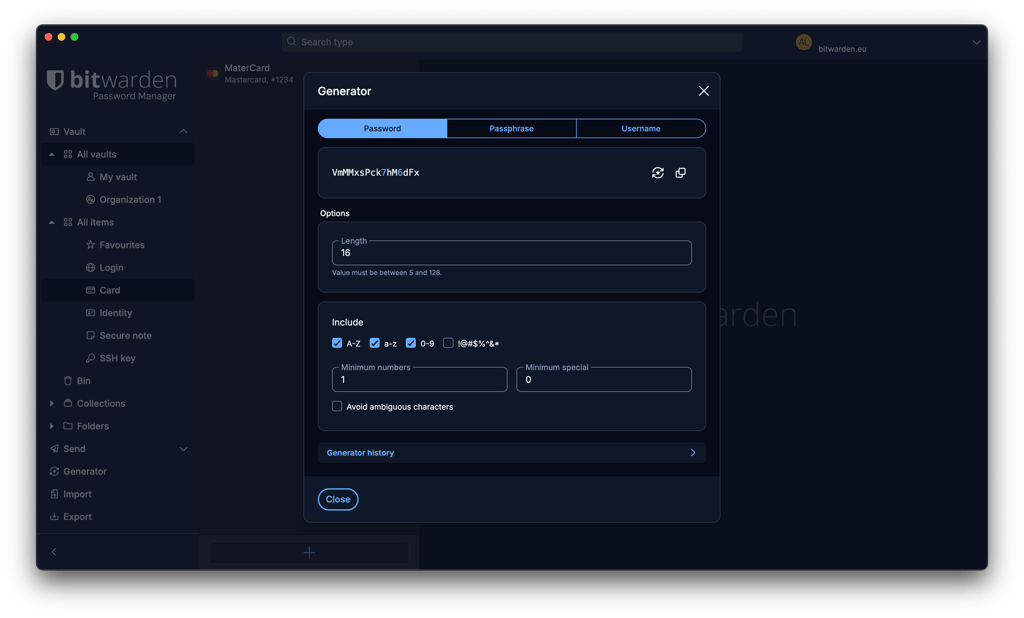
Bitwarden goes a step further with its username generator, which can create random usernames as well as plus-addressed, catch-all, and forwarded email aliases through supported services. Overall, both password generators are highly customizable, but Bitwarden has a slight edge thanks to its broader range of generation options.
Password sharing
There are plenty of legitimate reasons to share login credentials, such as managing household accounts or collaborating with family members or colleagues. In these cases, using your password manager's encrypted sharing tools is safer than sending credentials through ordinary messages or email.
Enpass lets you securely share individual vault items using a pre-shared key (PSK). The recipient needs this secret password to unlock and import the encrypted item into their Enpass vault. However, individually shared items are copied rather than continuously synced, so changes to the original won't automatically appear in the recipient's copy. For ongoing sharing, Enpass recommends using a shared vault instead.
Bitwarden provides more ways to share sensitive information. Organizations and Collections let you securely share vault items with other Bitwarden users and control who can access them. Bitwarden Send provides another option for sharing encrypted text or files through a temporary link – and the recipient doesn't need a Bitwarden account. Sends can also be protected with passwords, deletion dates, and access limits.
Platforms, interface, and ease of use
When looking at compatibility, both Enpass and Bitwarden are available on all the most popular platforms and operating systems.
| Enpass | Bitwarden | |
| Supported OS | Windows, macOS, iOS, Android, and Linux | Windows, macOS, iOS, Android, and Linux |
| Browser extensions | Chrome, Firefox, Safari, Opera, Edge, Vivaldi, and Brave | Chrome, Firefox, Safari, Opera, Edge, Vivaldi, Brave, Tor, and DuckDuckGo |
| Number of users | Up to 6 | Up to 6 |

Desktop apps
Both Enpass and Bitwarden offer desktop apps for Windows, macOS, and Linux. In my testing, both were quick to install and straightforward to set up.
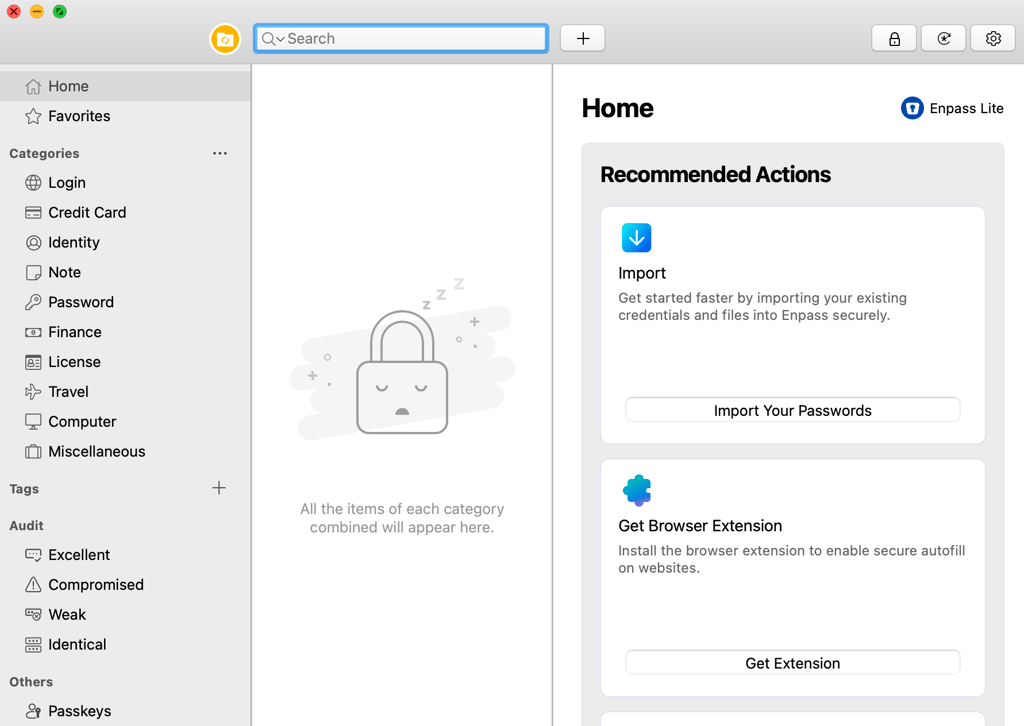
Enpass’s desktop app felt clean and well organized, with its core password management tools and vault categories arranged in clearly defined sections. I found everyday features easy to locate, making the app straightforward to navigate.
Bitwarden’s desktop app also provides a comprehensive vault experience, letting you manage logins and other vault items, generate passwords, organize credentials, switch between multiple accounts, and import data without relying on the web app. Some advanced account settings may still require or be easier to manage through the web app, but the desktop application covers the main tasks you’re likely to use day to day.
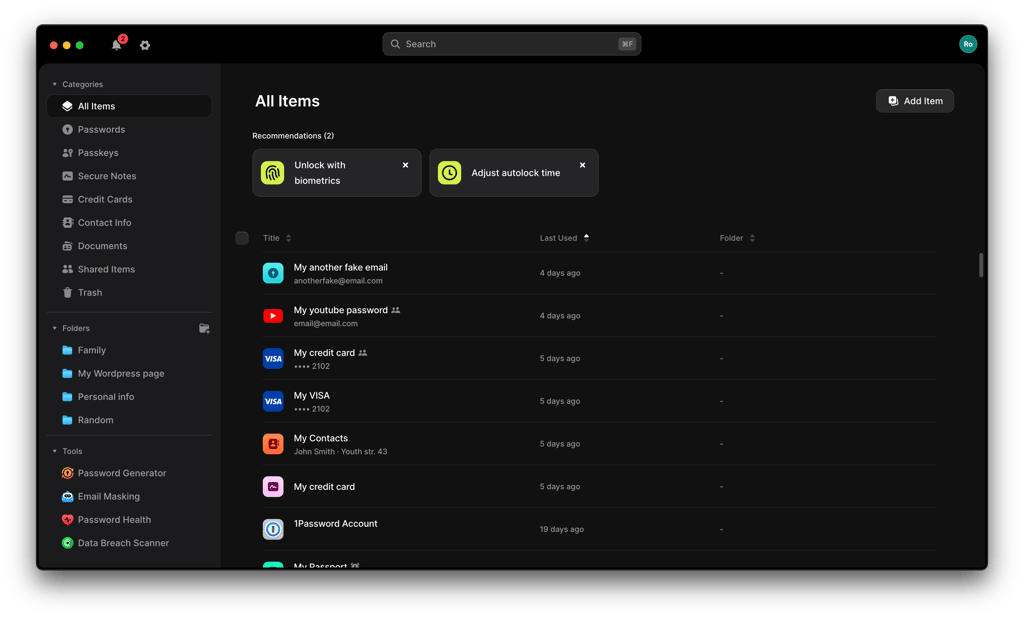
Hence, Enpass definitely has a superior desktop app.
Browser extensions
Enpass supports Chrome, Edge, Firefox, Safari, and other Chromium and Firefox-based browsers, including Brave, Opera, Vivaldi, Tor, and LibreWolf. Its extension can save and autofill passwords, passkeys, payment details, identities, and web forms. However, the extension doesn't work independently – it needs to be connected to the Enpass desktop app, which adds an extra setup step.
Bitwarden's browser extension works as a more standalone experience and offers core features such as vault access, autofill, password generation, and credential saving directly in the browser. The experience is largely consistent across browsers, although there are some platform-specific differences – for example, Firefox users can optionally use Bitwarden in a persistent sidebar.
In my testing, both extensions handled everyday password management well, but Bitwarden has a slight usability advantage because its extension doesn't depend on a separate desktop app.
Mobile apps
You can download the Enpass app or the Bitwarden app from the Google Play Store or Apple App Store, meaning that both password managers are compatible with iOS and Android. However, this is where the similarities end.
Enpass's mobile apps include many of the same core password-management tools as its desktop version, including autofill, password generation, auditing, sharing, and passkey support. However, free mobile users are limited to 25 items, so you'll need a paid plan if you want to manage a larger vault on your phone.
Bitwarden Free is considerably less restrictive, supporting unlimited vault items across unlimited devices. Its mobile apps also support autofill, passkeys, vault management, and mobile import options. Bitwarden now supports direct transfers from compatible password managers through CXP on supported Android and iOS devices, while other import formats may still require the web app.
Customer support
Both Enpass and Bitwarden offer a mix of self-service resources and direct customer support, although Bitwarden has a slight advantage when it comes to availability.
Enpass provides an extensive Help Center with setup guides, FAQs, and troubleshooting resources. There’s also an active Community Forum where you can search for solutions or ask other users and Enpass staff for help. Direct email support is available to Personal and Family subscribers, with Enpass stating that its team aims to respond within 2 business days. Free users, however, are limited to the Help Center and Community Forum.
Bitwarden provides a similarly comprehensive Help Center and Community Forum, but email support is available 24/7 to all users, including those on the free plan. Paid users also receive priority support, which can help reduce response times for more urgent issues. However, direct support for personal users is primarily email-based, so neither provider offers the kind of live chat support you might prefer for immediate assistance.
Overall, Bitwarden has a slight edge in customer support. Both providers offer plenty of documentation and community resources, but Bitwarden’s 24/7 email support for free and paid users makes direct assistance more accessible.
Enpass vs Bitwarden – which should you choose?
Enpass and Bitwarden are both capable password managers, but they're best suited to different priorities. Enpass is the better fit if you want greater control over where your encrypted vault is stored and synced. Its recently redesigned interface also felt cleaner and easier to navigate in my testing.
Bitwarden, meanwhile, is the stronger choice if you value open-source transparency, a generous free plan, broader MFA options, and a more versatile feature set. Its free plan is particularly compelling for users who want password management across multiple devices without paying for a subscription.
Overall, I'd pick Bitwarden as the better password manager for most users. Enpass remains a strong alternative if user-controlled vault storage and a simpler interface matter more to you, but Bitwarden offers the better overall balance of security transparency, features, cross-device flexibility, and value.
FAQ
Is Enpass better than Bitwarden?
For most users, Bitwarden is the better overall choice. It offers a more generous free plan, open-source transparency, broader MFA options, and versatile sharing and cross-device features. Enpass is a strong alternative if you prioritize greater control over where your encrypted vault is stored and synced or prefer its interface.
Which is better for mobile: Bitwarden or Enpass?
Bitwarden is better for mobile, particularly if you want a free password manager. Bitwarden Free supports unlimited passwords across unlimited devices, while Enpass’s free mobile tier is limited to 25 items. Enpass still offers a capable mobile experience, but you’ll need a paid plan for unrestricted use.
Can Enpass import from Bitwarden?
Yes, you’ll be able to import your passwords from Bitwarden to Enpass. To do this, you’ll need to export your data in an unencrypted file, which can be supported by Enpass. You can then import your passwords across to your new manager using the desktop app.