Best password manager for Windows 10 and 11


A dedicated password manager for Windows 10 and 11 keeps your logins organized, generates strong, unique passwords, and autofills credentials when you sign in. It can also help you spot weak, reused, or compromised passwords, reducing the risk of account takeovers and data theft.
While Windows and browsers can save passwords, a dedicated Windows password manager typically offers stronger security tools, cross-device syncing, secure sharing, and storage for sensitive details such as credit cards and personal information. Some premium plans also include encrypted file storage or a VPN.
We tested 20 providers to find the best password managers for Windows in 2026. NordPass ranked first for its intuitive Windows app, robust free plan, and strong security features. Read on to see all of my seven top-rated options.
Best Windows password managers
- NordPass – best Windows 10 and 11 password manager with all-you-need features
- 1Password – easy-to-use password manager for Windows
- Keeper – secure Windows password manager with encrypted chat
- RoboForm – beginner-friendly password manager for Windows with powerful autofill
- Dashlane – web-based Windows password manager with a VPN
- Passwarden – password manager with data breach monitoring
- Enpass – straightforward and affordable Windows password manager
Best password managers for Windows – our detailed list
The list below displays the best password managers for Windows based on our extensive testing on compatibility, security, features, and price. The list includes short reviews that will help you pick the right tool.
1. NordPass – best Windows password manager

| Compatibility: | Windows, macOS, Linux, Android, iOS |
| Number of devices: | Unlimited sync |
| Free version: | ✅ Yes |
| Current deal: | Get NordPass, now with 61% OFF |
NordPass is one of the best password managers for Windows. It’s a reliable service that offers virtually unbreakable security and includes unique features, such as a Data Breach Scanner. It also has a basic free version with a strong password generator, best for those who are not interested in more advanced features.
The NordPass Windows app has everything you need. First, you can install the NordPass application on Windows 10 and 11 in just a few minutes. It is also compatible with Android, iOS, and Mac. NordPass also offers a browser extension for Edge.
NordPass’ Windows interface is extremely user-friendly and easy to navigate. You can search for items with the search bar, or easily see all of them at once. Adding, editing, and deleting items or folders takes just a few clicks, too.
In terms of features, there’s a Data Breach Scanner that will let you know whether any of your passwords or even credit card details have been leaked. It is very easy to use – you simply need to enter the emails you want to monitor, and NordPass will do the rest. There is also an OCR feature that scans text from written documents without you having to type it in. This feature is unique, as no other Windows password manager offers it.
Additionally, with the latest NordPass 7.9 version, you also get expanded multi-device 2FA authenticator capabilities, offline vault access for organizations, improved data breach mapping, and refined instant-login prompts. Instant login will automatically detect and fill in your passwords for you – you don’t have to do it yourself. There’s also email masking, which helps prevent spam and other malicious emails.
The password generator is useful, too. It generates strong passwords (including symbols, capital letters, etc.) for you. NordPass shields all your passwords with the XChaCha20 encryption, which is arguably stronger than the industry-standard AES-256.
If you encounter difficulties, NordPass includes 24/7 live chat, email support, a knowledge base, and how-to guides to help you with whatever problem you have.
Finally, NordPass offers an intuitive yet limited free version. So, if you want to level up your password and credential security on Windows, a premium subscription starts at only $1.29/month. You can also get a family plan, and there’s an additional 30-day money-back guarantee for you to try it risk-free.
Dive into our comprehensive NordPass review to learn more.
2. 1Password – top-class password manager for ease of use

| Compatibility: | Windows, macOS, Linux, Android, iOS |
| Number of devices: | Unlimited sync |
| Free version: | ❌ No |
| Current deal: | Get 1Password, now up to 50% OFF |
1Pasword is a top-tier Windows password manager that’s very easy to use and set up on your device. It offers a perfect combo of strong security measures and advanced features that provide you with excellent protection for your credentials.
1Password is a well-rounded solution with an intuitive app that you can easily install on your Windows 10 and 11 devices. Moreover, you can get it onto your preferred browser, and Edge is no exception.
1Password offers an easy-to-navigate Windows app and is full of features that help users feel at ease about their online security. For example, Watchtover warns whether any of your passwords are weak, outdated, or even compromised. It also offers multiple vaults for different credentials like passwords, secure documents, and credit card info. Creating a new vault takes just a couple of clicks. In addition, there’s the Travel Mode that lets you select which vaults are travel-safe so that you won’t expose vulnerable information.
The newest 1Password Windows app version 8.12.30 includes expanded Watchtower plaintext secret scanning, new unlock settings and presets, and native Windows 11 passkey integration.
In terms of safety, 1Password uses banking-grade AES-256 encryption, implements a zero-knowledge policy and architecture, and offers two-factor authentication to secure your password vault. If you face difficulties, professional customer support will help you via ticket submissions, email, or chatbot. There's also a knowledge center if you want to solve the problem independently.
1Password’s price falls in the middle – it’s not as budget-friendly as NordPass, RoboForm, or Keeper, but still cheaper than Dashlane, starting at $2.99/month. There is also a 30-day money-back guarantee that will let you try out the tool worry-free.
Check out our 1Password review for more information.
3. Keeper – good Windows password manager with advanced security features

| Compatibility: | Windows, macOS, Linux, Android, iOS |
| Number of devices: | Unlimited sync |
| Free version: | ✅ Yes, but very limited |
| Current deal: | Limited-Time offer! Get 50% OFF Keeper Personal and Family plans |
Keeper is an ideal choice if you’re looking for a Windows password manager with an abundance of features. Also, it’s super secure and intuitive to use, so securing your credentials on the Windows device is as easy as it gets.
The Keeper Windows app is beginner-friendly and straightforward. You can download it for both Windows 10 and Windows 11. Additionally, the browser extension works with the most popular browsers, including Edge, so you can easily manage passwords on the app or the browser.
Alongside basics such as autofill and password generation, Keeper includes a myriad of functions that enhance the safety of your passwords and credentials. One of them is called BreachWatch, a Dark Web scanner that alerts you if any of your credentials get leaked. There’s even a KeeperChat – a separate messaging application that encrypts your messages and keeps them safe from the eyes of snoopers. It works just like any other chatting app – except you can only chat with other Keeper users. This Windows Keeper password manager also has a feature called Self-Destruct that automatically erases all of your passwords after five failed login attempts. Also, Keeper uses the industry-standard AES-256 encryption for ultimate security.
And if you need assistance, there's 24/7 support for premium users. You can also submit a ticket or simply dive into the knowledge base to find information yourself.
Keeper offers a limited free version for 1 mobile device and up to 10 records. Keeper’s premium plan prices start from $1.79/month, which puts it among the most budget-friendly password managers for Windows. There is also a Family plan and a flexible 30-day free trial.
Head over to our Keeper review for more information.
4. RoboForm – good for form-filling on Windows

| Compatibility: | Windows, macOS, Linux, ChromeOS, Android, and iOS |
| Number of devices: | Unlimited sync |
| Free version: | ✅ Yes |
| Current deal: | Get RoboForm, save up to 60% |
RoboForm is among the most popular and safe password managers for Windows 10 and above. Whether you need a Windows app or a browser extension, RoboForm has it all covered for a very low price. Roboform’s standout feature is its advanced, highly detailed identity-based form-filling.
To begin with, RoboForm offers a user-friendly interface across platforms, including Windows 10 and 11. The RoboForm Windows app is easy to use, even for beginners who are not familiar with password managers. And if you decide to use the provider on your browser, there’s an intuitive extension for Edge that delivers great functionality.
Regarding features, it has all the basics covered, too, including autofill or password generator. These features are easy to use, and autofill works great with all apps and websites. RoboForm is also able to create one-time passwords, that you can send via email or phone. You can also use this password manager to fill in all sorts of web forms. RoboForm lets users create detailed personal, financial, and vehicle profiles – including custom fields – to autofill complex, multi-page forms and checkouts with a single click.
RoboForm is a very secure password manager. The tool uses banking-grade AES-256 encryption, alerts you about weak passwords, and generates new passwords, which can have up to 512 characters. RoboForm supports 2FA authentication, too.
Every subscription now comes with the added benefit of live chat and phone support available everywhere. Additionally, subscribers will receive priority online support and chat services from 9 am to 5 pm EST, Monday through Friday. But if you're a free user, you can get support via tickets or browse the knowledge center.
Roboform offers a free version for those who are on a tight budget. On the other hand, the paid version is budget-friendly, too – you’ll pay only $0.99/month for all the Premium perks of RoboForm. You can even upgrade to a budget-friendly Family plan.
Learn more in our RoboForm review.
5. Dashlane – the most comprehensive suite of features

| Compatibility: | Web app/browser extension, macOS, Android, iOS |
| Number of devices: | Unlimited sync |
| Free version: | ❌ No |
| Current deal: | Get Dashlane, save up to 25% |
Dashlane is a versatile password manager for Windows that excels in multiple areas, from security to ease of use. It offers a larger feature suite than other providers and ensures top-notch security across your devices, including Windows.
Dashlane doesn’t have a desktop Windows app, but you can use its web app. The web interface offers a very intuitive, responsive, and feature-rich navigation experience. The app isn’t cluttered, and it’s suitable even for users who haven’t used a password manager before.
Dashlane offers more features than most other providers. In the easy-to-navigate web app, you’ll find a password generator, a password changer (that will update weak or old passwords), advanced form filling, Secure Notes, and Dark Web monitoring. The overall interface is neatly and logically organized, and using it is really simple.
In terms of security, there’s nothing to worry about. Dashlane uses industry-standard AES-256 encryption, includes 2FA authentication, and applies the zero-trust approach, meaning that even Dashlane cannot access your data. The data itself is protected by your master password and stored on your device.
Regarding customer service, you can contact Dashlane's 24/7 support via live chat or email, or dive into the FAQ.
The cost of Dashlane starts from $4.06/month. You can also get a Family plan and take advantage of the 14-day free trial.
Get more details in the Dashlane review.
6. Passwarden – intuitive password manager for new and advanced users

| Compatibility: | Windows, macOS, Android, and iOS |
| Number of devices: | Unlimited sync |
| Free version: | ✅ Yes |
| Current deal: | Get Passwarden for $1.66/month |
KeepSolid Passwarden password manager is a program that has everything together. Whether you’re looking for the right amount of security features or a user-friendly application. With it, your passwords become untouchable and unforgettable.
Passwarden offers a Windows 10 and 11 app that’s uncluttered and offers easy-to-use navigation. Alongside the most popular browsers, you can download an extension for Edge as well. The overall interface of the Passwarden Windows app is neat, everything is logically organized and easily accessible.
You can generate complex passwords by using Passwarden’s password generator. There’s also a security dashboard to check the safety status of your credentials regularly. And you will find much more features to benefit from once you start using the app. Passwarden uses unbreakable encryption, you can enable 2FA authentication (or biometric on Android, iOS, and macOS devices), and the company follows a strict privacy policy. And if you need help, there's 24/7 support, email support, and a knowledge base.
Finally, Passwarden has a free version that allows you to connect up to 2 devices and use many features on the list. However, the paid version protects an unlimited number of devices and uses every feature for just $1.66/month
Get more information in our Passwarden review.
7. Enpass – a straightforward Windows password manager

| Compatibility: | Windows, macOS, Linux, iOS, Android |
| Browser plugins: | Unlimited sync |
| Free version: | ✅ Yes |
| Current deal: | Get up to 25% OFF Enpass |
Enpass is a solid option for users who want a flexible, privacy-focused password manager for Windows. It supports local, offline vault storage and lets you sync encrypted data through your preferred cloud service, Wi‑Fi, WebDAV, or folder sync. Its Windows app includes essentials such as password generation, autofill, form filling, passkey support, and password-security auditing.
The Windows desktop app is free for individual users, although free mobile plans are limited to 25 saved items. Setup is straightforward: you can install Enpass from the Microsoft Store or download the installer from its website. Its Edge extension is easy to use for autofilling logins, cards, and identities, but the Enpass desktop app must be installed and running for the extension to work.
Also, you can contact the customer support team via email or phone line. There are also user guides, common FAQs, and a messaging forum to help you out.
However, if you want the full experience, you’ll have to subscribe to one of its paid plans. The price starts from $1.99/month, so it won't break the bank. However, keep in mind that these prices are for the first year only – later on, they increase a bit.
Comparison of the best password managers for Windows
Here's how the best password managers for Windows compare to each other:
| NordPass | 1Password | Keeper | RoboForm | Dashlane | Passwarden | Enpass | |
| Logo |  |  |  |  |  |  |  |
| Rating | |||||||
| Free version | ✅ Yes | ❌ No | ✅ Yes | ✅ Yes | ❌ No | ✅ Yes | ✅ Yes |
| Starting price | $1.29/month | $2.99/month | $1.79/month | $0.99/month | $4.06/month | $1.66/month | $1.99/month |
| Windows app | Dedicated app, intuitive, easy-to-use | Dedicated app is beginner friendly | Windows app is sleek and responsive | Dedicated Windows app is intuitive and user-friendly | No Windows app, web app only | Modern, sleek, and responsive Windows app | Easy to use, free |
| Encryption | XChaCha20 | AES-256 | AES-256 | AES-256 | AES-256 | AES-256-GCM | AES 256-bit |
| Cloud storage | 3GB with NordLocker | 1–5GB | 5GB | Unlimited | 1–5GB | Unlimited | No |
| Browser plugins | Safari, Chrome, Firefox, Opera, Brave, Vivaldi, and Edge | Chrome, Brave, Firefox, Edge | Chrome, Firefox, Opera, Edge | Chrome, Edge, Firefox, Opera | Safari, Chrome, Firefox, Edge | Safari, Chrome, Firefox, Opera, Edge | Safari, Chrome, Firefox, Edge, Brave, Vivaldi |
| Windows Hello compatible | ✅ Yes | ✅ Yes | ✅ Yes | ✅ Yes | ✅ Yes | ❌ No | ✅ Yes |
| Data breach checker | ✅ Yes | ✅ Yes | ✅ Yes | ✅ Yes | ✅ Yes | ✅ Yes | ✅ Yes |
| Instant login/auto-type | ✅ Yes | ✅ Yes | ✅ Yes | ✅ Yes | ✅ Yes | ✅ Yes | ✅ Yes |
| Current deal | Get NordPass, now with 61% OFF | Get 1Password, now up to 50% OFF | Limited-Time offer! Get 50% OFF Keeper Personal and Family plans | Get RoboForm, save up to 60% | Get Dashlane, save up to 25% | Get Passwarden for $1.66/month | Get up to 25% OFF Enpass |

Password managers for Windows: video review
How to choose the best Windows 10 password manager
Choosing a password manager for your Windows or any other device shouldn’t be a headache-inducing process. Quite the contrary – if you know your needs, then picking the right tool will be a piece of cake. Here’s what you should take a look at while choosing the best Windows 10 and 11 password manager:
- Compatibility. First and foremost, if you’re on the lookout for a password manager for Windows, make sure it’s compatible with your Windows device. Moreover, ensure that it can support other popular operating systems, such as iOS, Android, macOS, or Linux in case you decide to switch.
- Security. It’s essential that your password is secure, difficult to hack, and doesn’t repeat across platforms or websites. That’s why you should pay a lot of attention to getting an unbreakable password manager that uses AES-256 or XChaCha20 encryption and provides multiple methods for multi-factor authentication.
- Features. Choose a password manager for Windows that boasts a feature-rich suite. Look for a provider with features, such as vaults, password generators, one-click logins, travel mode, dark web scanners, or even built-in VPNs that are a must in keeping your data safe.
- Zero-knowledge architecture. All reputable password managers implement the zero-knowledge architecture, which means that the service provider can’t have access to any of your passwords or other data. Make sure that a provider you’re about to select compiles with one.
What is the best free Windows password manager?
The best free Windows 10 password manager nomination goes to NordPass. After all, it has done a great job personalizing its software for the Windows desktop app. Even though you can only have one device connected, NordPass offers you an attractive interface. The application is easy to use, and you receive a luxurious package of strong security features.
Just install the app on your Windows device, and you can enjoy NordPass's perks right away. The free version includes a strong password generator, advanced form-filling, and the possibility to store your notes and credit cards. Moreover, NordPass makes sure you are fully secure, therefore, enabling multi-factor authentication, so getting into your vault would become rather impossible for a stranger.
So, if you are considering getting a free Windows password manager, NordPass is the best choice.
Does Microsoft have its own password manager?
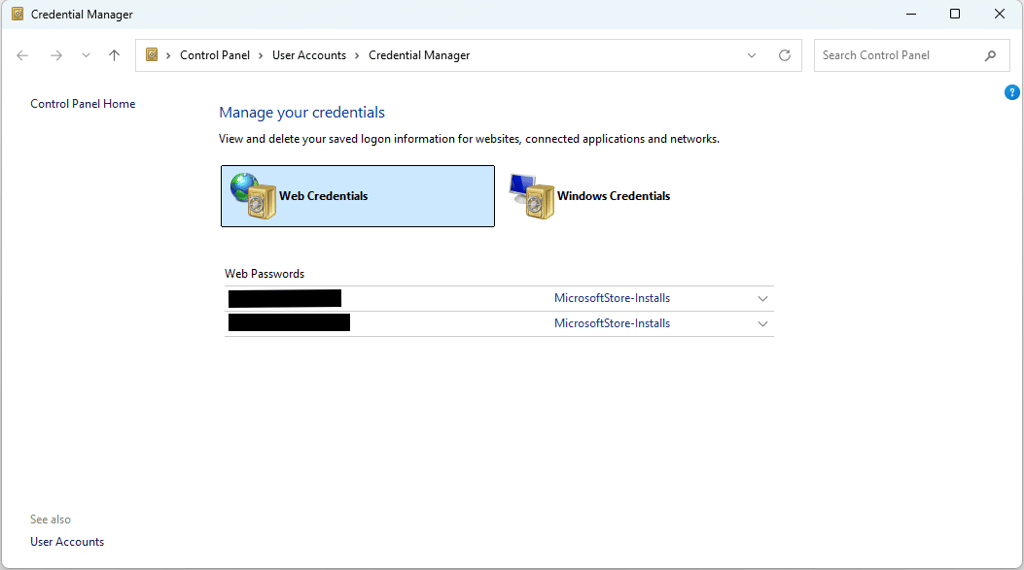
Yes, Microsoft has a password manager for Windows called Credential Manager. It is a password manager that allows you to remove, edit, or backup all of the passwords stored in your computer, including passwords for applications and websites.
There is also a browser-based password manager called Microsoft Edge Password Manager. It is integrated into the Edge browser and is designed to help users securely store, manage, and auto-fill passwords for websites and online services.
Where is the password manager in Windows?
You can view and access your saved passwords on Windows by accessing the Credential Manager. It allows you to access and remove your stored credentials for logging in to websites, connected apps, and networks.
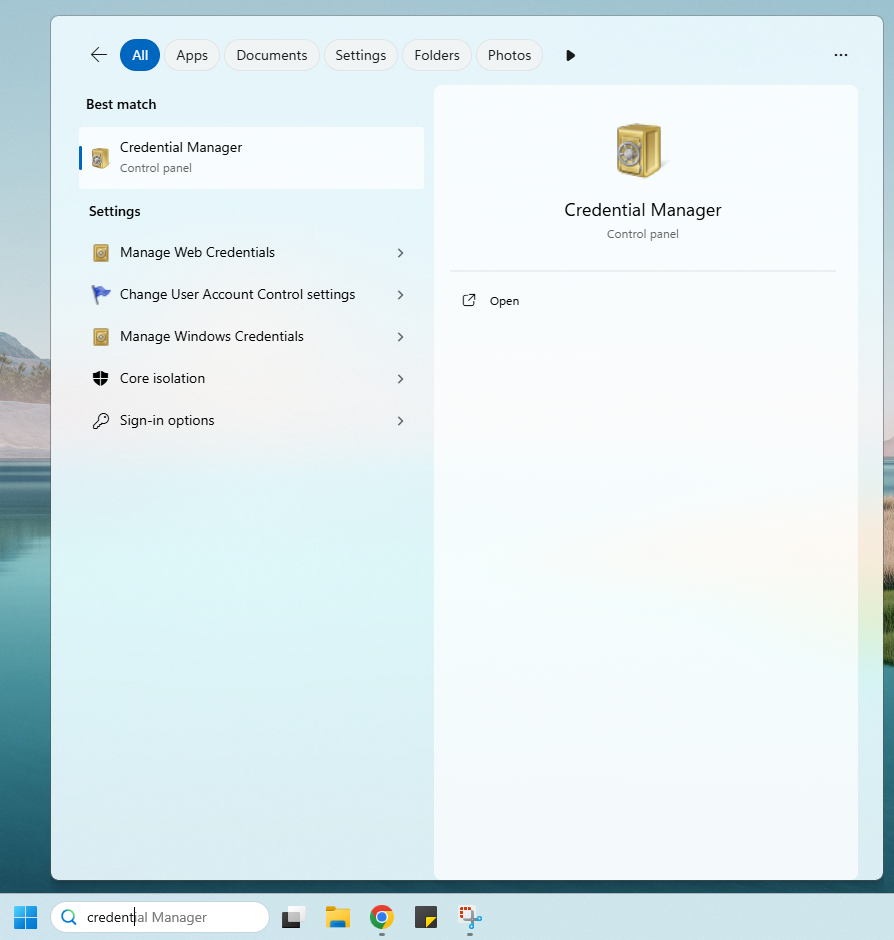
If you want to access the Credential Manager, simply type “credential manager” in the search box located on the taskbar and then choose the Credential Manager Control Panel option.
Here’s a step-by-step guide on how to do it:
-
In the Windows search bar, type “Credential Manager”
-
You’ll see a window where you can select to view Web and Windows Credentials. Tap on the one you’d like to see
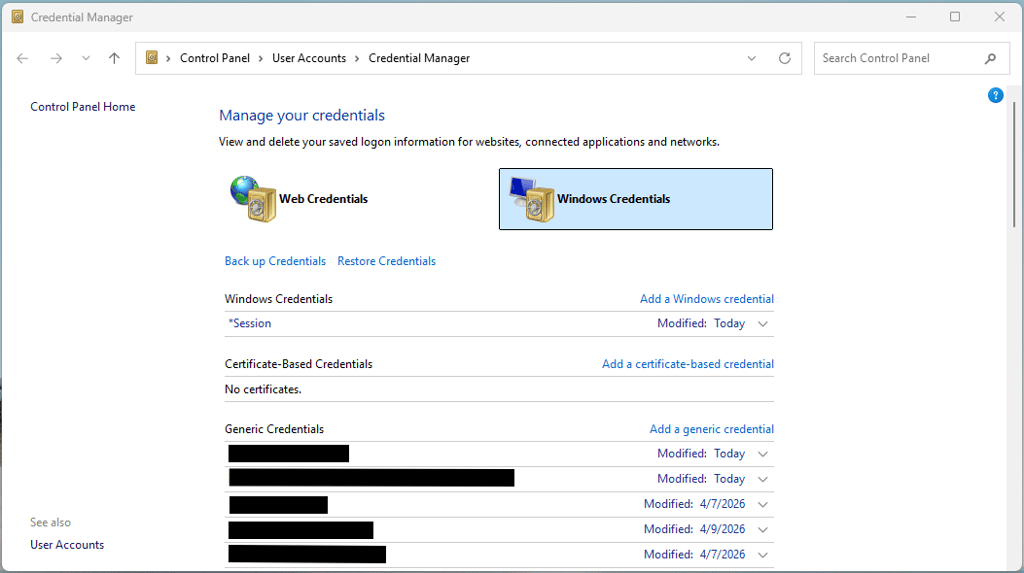
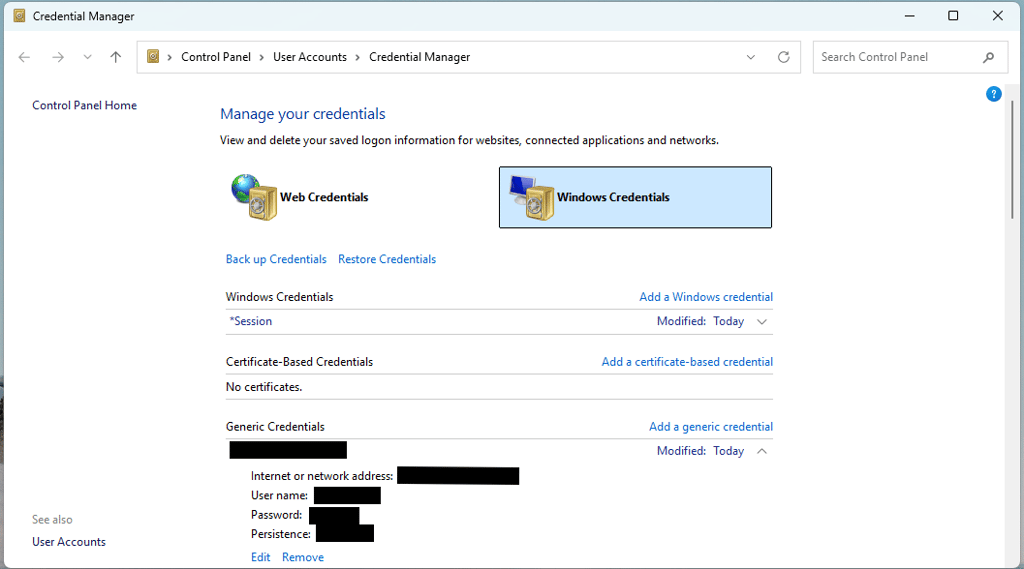
- Choose a password in the list, and click the arrow down
-
You can now edit or remove your credentials, saved on the web or your Windows device
However, the Credential Manager can only store the passwords that you use on your Windows device. You can also remove, edit, or backup the existing passwords. If you would like more control over your passwords and more security features, such as a password generator and password health checker, I recommend getting a reputable third-party password manager for Windows, such as NordPass, that covers your safety on all fronts – you can even use it for free.
Conclusion
Passwords are often the first line of defense for your personal information. Windows includes Credential Manager for saved website, app, and network credentials, while Microsoft Password Manager, available through Edge and Windows Settings, can save and sync passwords and passkeys. However, a dedicated password manager can still provide more flexible cross-browser and cross-device support.
After evaluating security, Windows compatibility, features, usability, and value, NordPass ranked as our best password manager for Windows 10 and 11. Its Windows app and Edge extension make it easy to generate strong passwords, save and autofill credentials, and identify weak or compromised logins. NordPass also offers a free plan with core password-management features.
1Password is another excellent choice, with Windows and Edge support plus autofill for passwords, two-factor authentication codes, cards, and other sensitive data. Either provider offers a more feature-rich way to manage your credentials than relying solely on a browser-based Windows password manager.
Other password manager reviews from Cybernews
FAQ
What is the best password manager for Windows?
Right now, the best password manager for Windows 10 is NordPass. It is extremely secure, offers lots of features like Dark Web monitoring, and is very affordable.
How does a password manager work?
A password manager works by storing all your usernames and website logins inside a single, highly secure, digitally encrypted vault and automatically filling your passwords and other credentials. All you need to do is remember your master password that you will use to log into your password manager account.
Does Microsoft have a free password manager?
Yes, Microsoft provides a free, built-in password manager integrated directly into the Microsoft Edge browser and Windows. It stores passwords that you use on your Windows device. You can also remove, edit, or back up the existing passwords. However, if you would like more features, like a password generator and more advanced security, and cover different devices, we recommend getting a third-party Windows password manager like NordPass.