1Password vs Sticky Password: which one’s better?

The main difference between 1Password and Sticky Password is that 1Password offers a more advanced feature set, while Sticky Password provides a simpler password management experience with more flexible syncing options. 1Password includes tools such as Travel Mode, Watchtower security alerts, passkey support, and multiple vaults. Sticky Password, meanwhile, stands out with Local Wi-Fi Sync, which lets you sync passwords between devices without sending your vault data to the cloud. It also offers a free plan, whereas 1Password is a paid-only service.
For this 2026 comparison, I reviewed and tested both password managers, evaluating their security, features, ease of use, customer support, and pricing. I also checked their latest plans and product updates to determine which currently provides better overall value.
Read on for my 1Password vs Sticky Password comparison to see how they perform side by side and which password manager better fits your needs.
1Password vs Sticky Password – an overview
The main differences between 1Password and Sticky Password come down to pricing, free access, and compatibility. 1Password starts at $2.99/month and offers a 14-day free trial, while Sticky Password offers a free version and a $59.99 lifetime plan with a one-time payment. Both password managers use AES-256 encryption and support major operating systems, although 1Password also supports Linux. Sticky Password, meanwhile, supports a wider selection of browser extensions.
| 1Password | Sticky Password | |
| ⭐ Rating: | ||
| 🥇 Overall rank: | #2 out of #20 | #9 out of #20 |
| 🔥 Coupons: | 1Password coupon 50% OFF | Sticky Password coupon 70% OFF |
| 💵 Price: | From $2.99/month | From $59.99/lifetime |
| ✂️ Free version: | 14-day trial | Yes |
| 🔒 Encryption: | AES-256 | AES-256 |
| 🖥️ Platforms: | Windows, macOS, Linux, Android, iOS | Windows, macOS, Android, iOS |
| 🌐 Browser extensions: | Chrome, Firefox, Edge, Brave, Safari | Chrome, Firefox, Safari, Opera, Internet Explorer, Edge, Brave, Vivaldi |

Recent Updates
Key differences between 1Password vs Sticky Password
Below I share a quick comparison of 1Password and Sticky Password highlighting their key differences. These points make it easier to see which password manager fits what needs.
Choose 1Password if:
- You want a rich feature set. 1Password offers advanced tools such as Travel Mode, Watchtower security alerts, passkey support, and multiple vaults, giving you more ways to organize and protect your credentials.
- You appreciate the modern app interface. 1Password’s apps are clean, modern apps across Windows, macOS, Linux, iOS, and Android. The browser extensions are just as strong and easy to use.
- You’re looking to invest in advanced security. 1Password offers features such as Secret Key, flexible multi-factor authentication (MFA), a clear-cut privacy policy, and regular independent security audits.
Read our detailed 1Password review to learn more about its security, performance, and overall usability.
Choose Sticky Password if:
- You value long-term affordability. Unlike many competitors that only offer subscriptions, Sticky Password includes a lifetime plan, which is a great option for users who prefer a one-time payment over recurring monthly fees.
- You need secure password sharing with detailed permissions. Sticky Password’s Sharing Center lets you securely share credentials with family members, teammates, or colleagues while controlling access permissions and editing rights.
- You want flexible sync options. Sticky Password lets you choose between cloud synchronization and Local Wi-Fi Sync, or disable synchronization altogether. Local Wi-Fi Sync lets you sync encrypted vault data between devices over your local network without storing it in the cloud.
1Password vs Sticky Password: plans and pricing
1Password is the cheaper password manager when we compare 1Password vs Sticky Password in terms of pricing. Even with its more affordable pricing, 1Password doesn’t hold back on features. For the more cautious users, you can test out its services with its 14-day free trial before committing to a paid plan.
| Plan | 1Password | Sticky Password |
| Free | No, 14-day free trial | Yes, free version |
| Premium | $2.99/month | $29.99/year or $59.99 for a lifetime license |
| Family | $4.49/month | - |
| Business | $8.99/month | $29.99/per user/year |
| Try 1Password | Try Sticky Password |
As for Sticky Password, it offers a Free plan alongside Premium, Lifetime, and Teams options. The Lifetime plan is particularly notable for users who prefer a one-time payment instead of a recurring subscription, while the Teams plan is designed for business use. Paid plans also come with a 30-day money-back guarantee.
1Password pricing
1Password has multiple plans for all sorts of users. For personal plans, it offers two options, and the same number for businesses, too:
- 1Password Individual – $2.99/month for 1 user
- 1Password Families – $4.49/month for 5 users
- 1Password Teams – $24.95/month for up to 10 users
- 1Password Business – $8.99/month per user
For a solitary user, 1Password Individual is the best option. It supports unlimited devices and comes with features like unlimited password storage, 1GB file storage, autofill, 2FA, 1Password Watchtower, Travel Mode, as well as a secure storage for payment cards and other sensitive information.
To squeeze in more users, get 1Password Families. It can support up to five users and comes with everything the 1Password Individual plan offers. Plus, you also get access/permission management and account recovery.
1Password Business adds organization-focused features such as granular access controls, audit logs, usage reports, account recovery, and automated provisioning. Each team member can also claim a complimentary 1Password Families membership for personal use.
Sticky Password pricing
For individual users, Sticky Password offers Free and Premium options, with Premium available as either a 1-year or Lifetime license. The Free plan includes unlimited password storage, autofill, password generation, and other core security features, but it lacks synchronization and backup across multiple devices.
The Premium plan currently costs $29.99/year and adds features such as cross-device synchronization and backup, secure password sharing, Emergency Access, priority support, and Dark Web Monitoring. Sticky Password also offers a dedicated Premium for Teams plan for $29.99/user/year, which adds an admin console and tools for managing users and permissions.
Alternatively, you can currently get a Lifetime license for a one-time payment of $59.99. It includes the Premium password manager features permanently and Dark Web Monitoring for the first year.
1Password vs Sticky Password: security overview
Overall, 1Password is the more secure password manager in this 1Password vs Sticky Password security comparison. That said, both put up a good fight with advanced measures like 256-bit AES encryption, zero-knowledge architecture, and multi-factor authentication (MFA). Plus, their privacy policies are relatively moderate and fair.
However, 1Password got the better of Sticky Password due to some key strengths, such as broader security architecture. In addition to AES-256, 1Password combines the account password with a unique Secret Key and uses SRP for authentication. Additionally, 1Password is very transparent with its security, especially regarding third-party security audits.
In contrast, Sticky Password only has basic MFA options. Also, Sticky Password doesn't provide the same level of publicly available independent security assessment documentation as 1Password.
Encryption
Our 1Password review showed that it has the lead here, but both password managers use strong encryption. They take very similar approaches to guarding your data.
Both 1Password and Sticky Password use 256-bit AES encryption to encrypt user data. AES-256 is a widely used encryption standard. The duo also uses PBKDF2 password hashing to shield your master password from brute force and dictionary attacks.
Plus, both password managers were built on zero-knowledge architecture. This means that only you have access to your vault, and the companies and their employees cannot access or intercept your data.
However, 1Password has an additional security layer – its 128-bit Secret Key. This unique, randomly generated key works alongside your account password to protect your vault. The Secret Key adds 128 bits of entropy, making server-side attempts to guess the information required to decrypt your vault computationally infeasible.
Multifactor security
For added protection, multi-factor authentication (MFA) requires an additional verification factor beyond your account password. 1Password has the advantage over Sticky Password here because it supports a broader selection of authentication methods.
1Password supports two-factor authentication (2FA) through authenticator apps, with Authy, Microsoft Authenticator, and Okta Verify listed as examples. You can also use a FIDO U2F-compatible hardware security key, such as a YubiKey or Titan, as your second factor. Business users have additional options – administrators can integrate Duo and manage or enforce MFA across their teams.
Sticky Password offers fewer 2FA options. Its standard 2FA implementation uses Google Authenticator to generate a six-digit time-based code. Sticky Password also uses email-based one-time PINs when authorizing new devices or browsers, while an email PIN can serve as an emergency fallback if you temporarily lose access to Google Authenticator.
Data storage
In addition to storing and managing your credentials, password managers also often double as secure storage vaults for sensitive files. 1Password offers more versatile data storage than Sticky Password, as it supports actual file uploads rather than text-based notes only.
With 1Password, Individual users get 1 GB of file storage, while Families includes 1 GB per person. Business users get a more generous 5 GB per person. You can use this space to securely store files such as passport scans, receipts, photos, and copies of important documents.
In contrast, things are a bit more confusing with Sticky Password since it doesn’t provide data storage in the traditional sense. Instead, you get a text-only Secure Memo feature that you can use to store information like login comments, membership details, and passport data. Since it’s text-based, you’ll have to fill in the memos manually.
Privacy policy
Both 1Password and Sticky Password are zero-knowledge password managers, meaning that they have no access to your vault. However, unavoidably, they still collect certain personal data. The silver lining here is that the pair’s privacy policies are pretty reasonable and nothing too outrageous. Moreover, both are forthcoming about how and what they log.
In 1Password’s case, it complies with Canadian privacy laws and the GDPR. Overall, you can expect it to collect account and usage information in addition to personally identifiable information. So, information like payment methods, logins, number of vaults, IP addresses, names, and email addresses is all within bounds.
Similarly, Sticky Password also adheres to this standard. To start, its data collection complies with the Czech Republic’s Privacy Act and the European Union’s GDPR. Among other things, it collects IP addresses, email addresses, device identifiers, operating systems, information about web browsers’ types, and payment information.
Third-party security audits
Third-party security audits are vital to evaluate a password manager’s security posture and identify vulnerabilities. In this respect, 1Password has a clear advantage over Sticky Password with its rigorous and regular audits.
1Password undergoes regular third-party penetration testing and security assessments, with its annual penetration-test reports available through the 1Password Trust Center. Its SOC 2 Type 2 controls are also routinely audited, and 1Password has worked with independent security firms such as Cure53 to assess its products and infrastructure. The company also operates a public vulnerability disclosure and bug bounty program.
Sticky Password provides considerably less information about independent security testing. While it publishes a security white paper explaining its encryption and security architecture, I couldn't find recent publicly available independent audit or penetration-test reports comparable to those provided by 1Password.
1Password vs Sticky Password: feature comparison
1Password takes the lead for features thanks to its broader and more advanced toolkit. It offers features such as Travel Mode, Watchtower, multiple vaults, passkey support, secure file storage, and Privacy Cards for eligible US users. Based on my testing, I also found its features straightforward to access and use across supported devices.
Sticky Password covers the essential password management features and has some notable extras of its own, including Emergency Access, Dark Web Monitoring, secure sharing, and Local Wi-Fi Sync. However, its overall feature selection is less extensive than 1Password’s, and several additional capabilities require a Premium plan.
Password importing
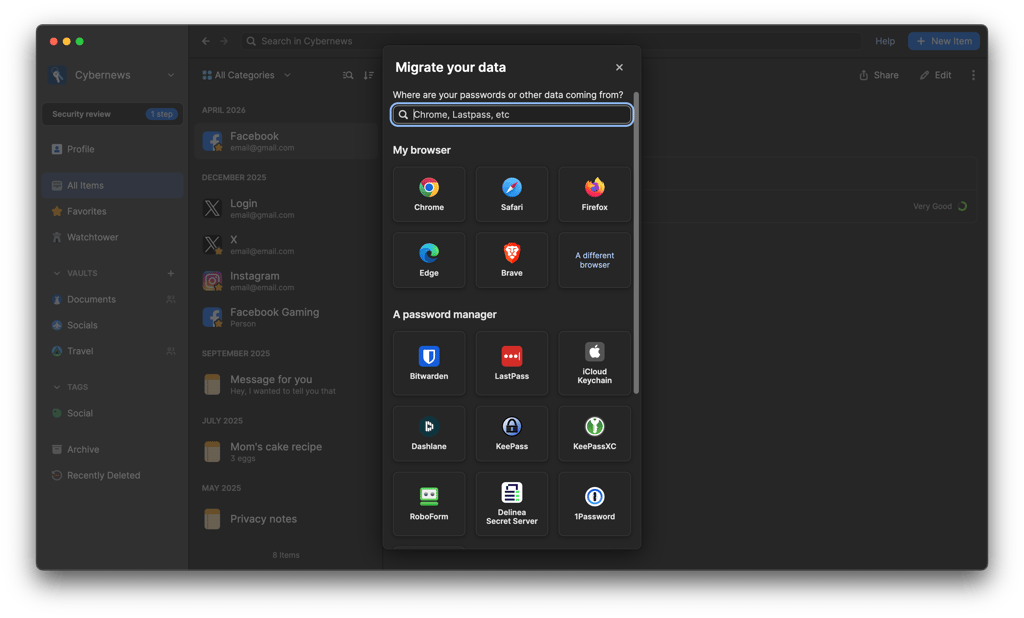
Both password managers offer bulk password-importing features for all the major browsers, file formats, and password managers on the market. Between them, 1Password has a longer list of supported applications. Based on my testing, I also found its migration process more straightforward than Sticky Password’s.
With 1Password, you can easily import data from such web browsers as Chrome, Firefox, Edge, Brave, and Safari with just a few clicks. It also supports imports from many other password managers like KeePass, LastPass, and RoboForm. For other services, you can import data using a properly formatted CSV file.
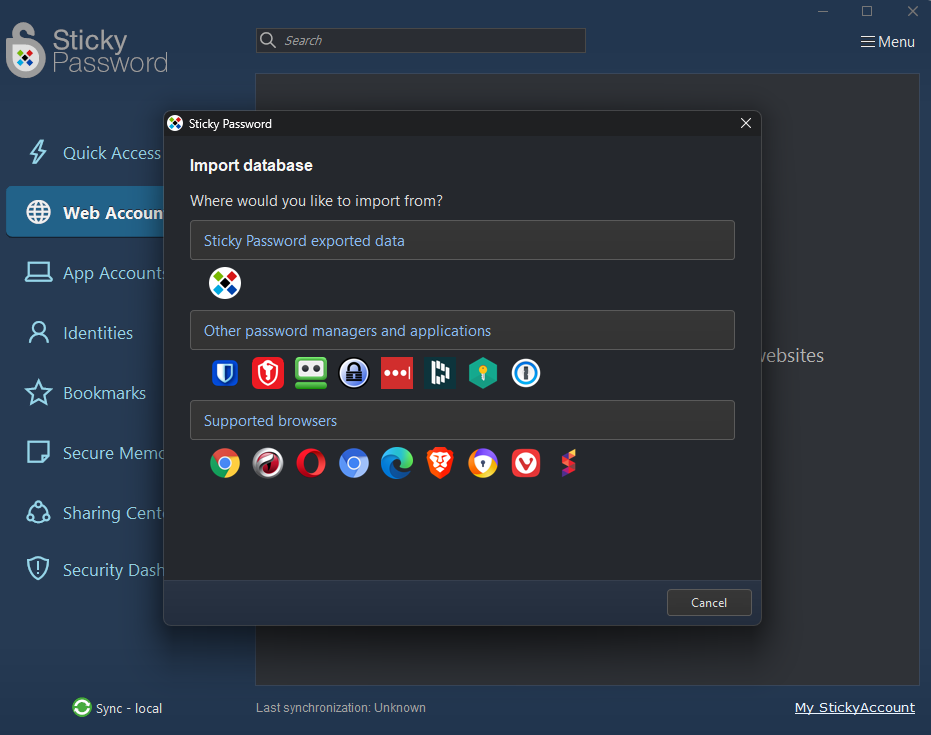
Meanwhile, Sticky Password allows fewer apps for bulk password importing. However, even then, a few popular names are included on the list, such as Chrome, Firefox, Internet Explorer, and Opera for browsers, and 1Password, RoboForm, and KeePass for other password managers.
During my testing, I found the migration process less streamlined than 1Password’s, particularly when moving data from sources without a dedicated import option.
Account and password recovery
1Password offers more comprehensive account recovery options than Sticky Password. Individual and Families users can generate a recovery code in advance, which can be used to regain access if they forget their account password or lose their Secret Key. After verifying their identity through their registered email address, users can create a new account password and receive a new Secret Key.
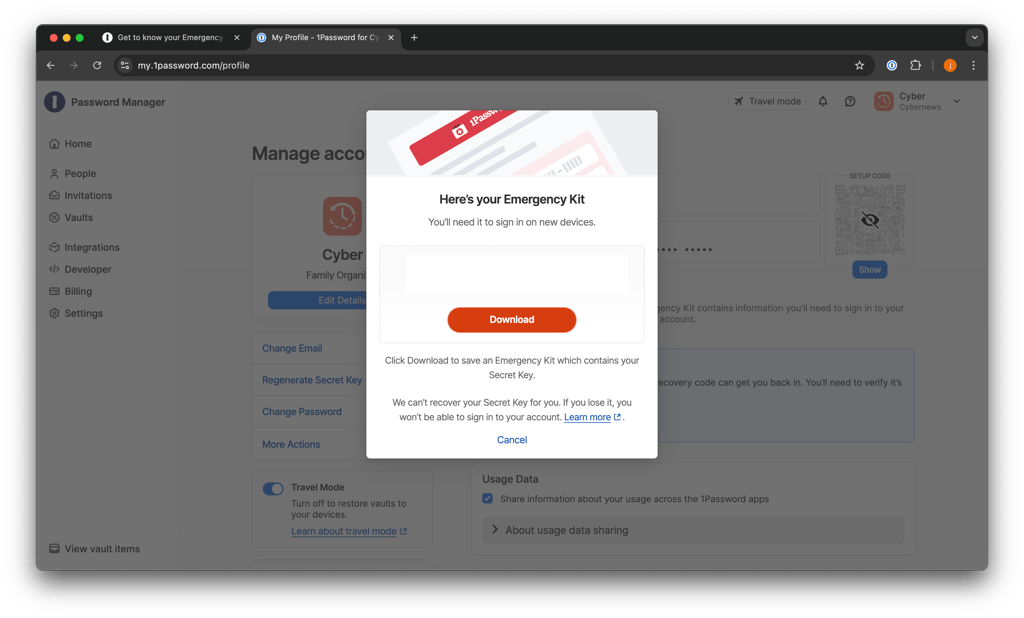
1Password also provides an Emergency Kit – a PDF containing important sign-in information, including your email address, Secret Key, Setup Code, and a space to record your account password. 1Password recommends keeping a securely stored digital or printed copy as an additional backup.
Recovery options are also available for shared accounts. Family organizers can recover family members' accounts, while authorized administrators or owners can recover team members' accounts. The recovered user receives a new Secret Key and creates a new account password without losing access to their existing vault data.
Sticky Password takes a more limited approach to account recovery. Because the provider doesn't know or store your Master Password, it can't simply reset it if you forget it. Sticky Password does offer Emergency Access for Premium users, but this feature is primarily designed to let a predefined trusted contact access your password database in an emergency after a specified waiting period.
Password generator
All trustworthy password managers include a password generator in their subscriptions. The tool helps you to swiftly and easily create unique and hard-to-crack passwords.
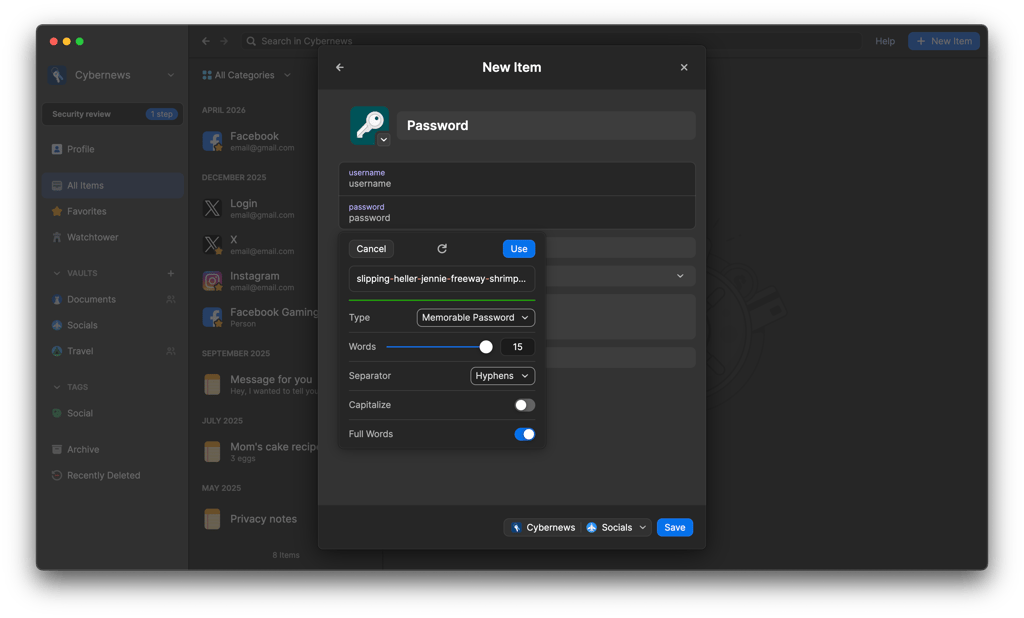
1Password offers the Strong Password Generator. The generator can create the usual random passwords as well as the less-common passphrases and PINs. Beyond that, you can also tweak the perimeters to adjust password length, capitalization, and type of characters.
Likewise, Sticky Password also has a password generator. You can access the generator on your main Sticky Password app, but it’s also conveniently available when you click on the password field when creating an entry. In terms of customizations, you have typical options like capitalization and the type of characters to include. Password length could go all the way up to 99 characters.
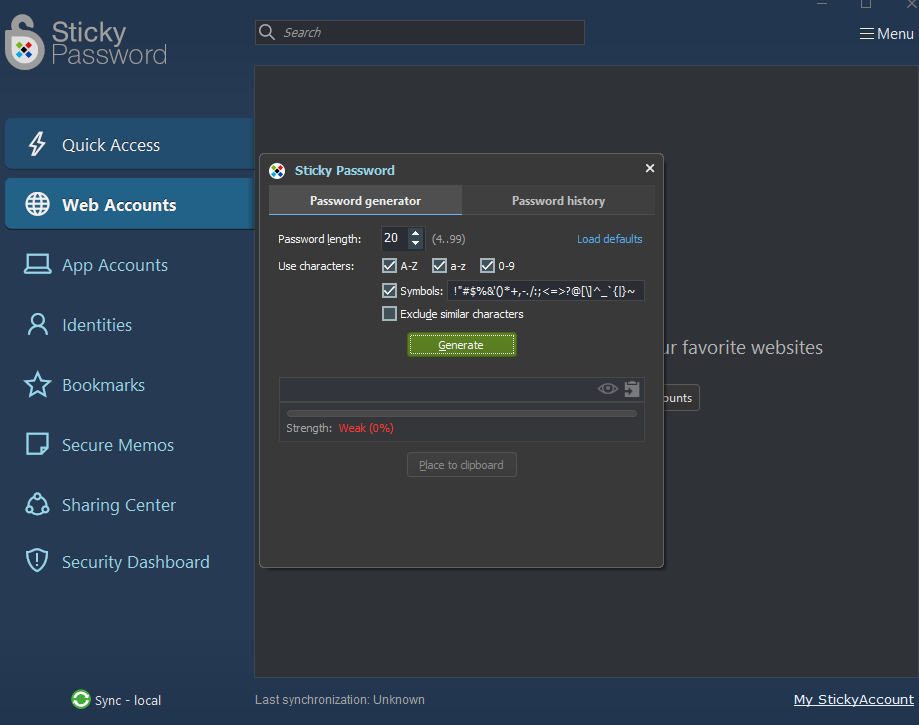
Both providers maintain password-generator history, allowing you to recover a generated password if it wasn't saved properly.
1Password’s generator is more flexible and functional, but Sticky Password’s automatic password generator bubble is also very handy.
Password sharing
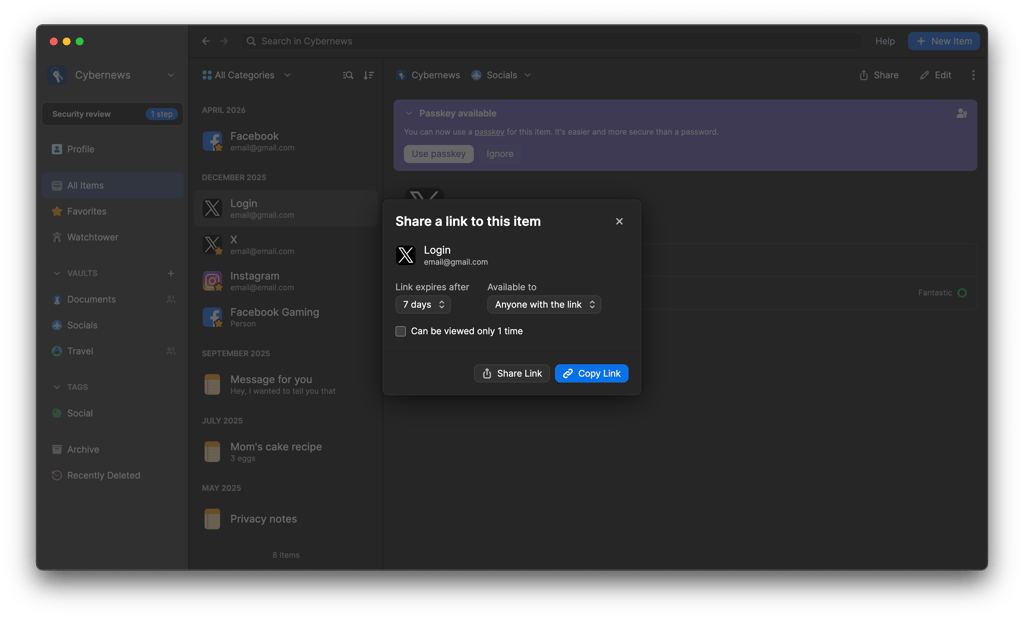
With 1Password, you can share credentials and even other saved items with others using just a link. You also have full control over the access and when it expires when generating a link.
Meanwhile, users on its Families and Team & Business plans can even share an entire vault with others. The family organizer or the team administrator will be responsible for managing each user’s permission and access level.
Similarly, Sticky Password also has secure sharing, where you can share credentials with others. However, its access rights are more restrictive in that there are only two options – limited or full rights. That’s not the worst of it. Instead, to share passwords, all the parties involved – that’s both the sender and recipient – are required to have a Premium subscription.
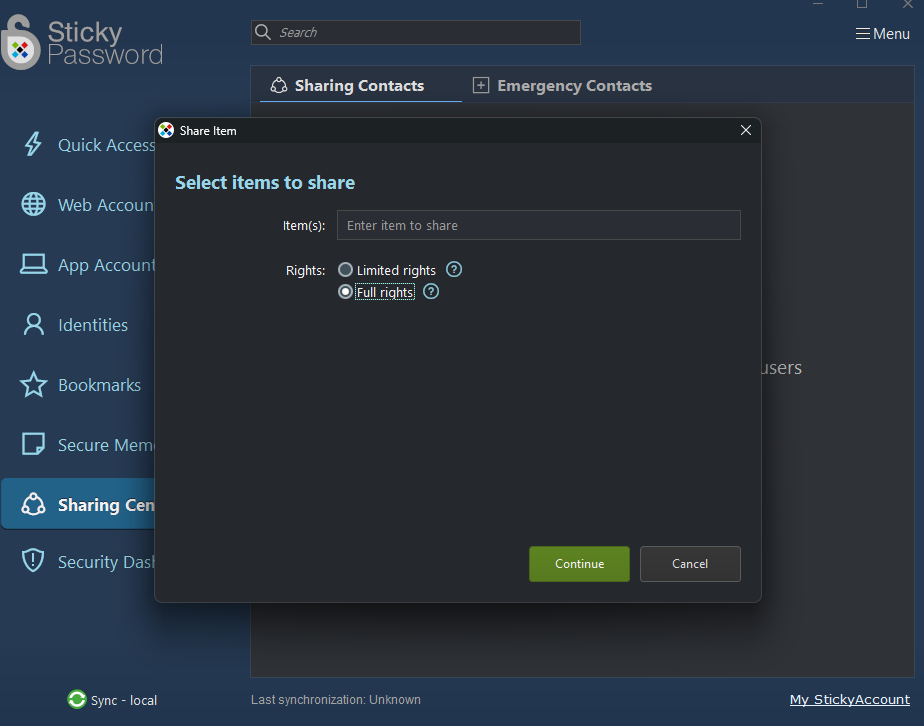
Overall, 1Password comes out ahead here with its convenient and accessible password-sharing tool. Meanwhile, Sticky Password’s decision to put the tool behind a paywall for both sender and recipient could be a deal-breaker for certain users.
Autofill
Both 1Password and Sticky Password offer autofill for credentials and other saved information, although their approaches differ slightly.
With 1Password, autofill requires user interaction as a security measure. When you visit a login page, you can select a suggested login from the 1Password interface to fill your credentials. You can also use Open & Fill to open a saved website and populate its login fields. 1Password intentionally doesn't autofill credentials without user input.
Sticky Password also displays matching credentials when you select a login field, allowing you to choose the account you want to use. However, you can also configure a default Automatic Login, in which case Sticky Password can automatically fill the corresponding username and password.
Platforms, interface, and ease of use
Both 1Password and Sticky Password support Windows, macOS, Android, and iOS, but their compatibility differs in a few areas. 1Password also offers a dedicated Linux app, while Sticky Password supports a broader selection of browsers, including Opera and Vivaldi in addition to major options such as Chrome, Firefox, Edge, Safari, and Brave.
| 1Password | Sticky Password | |
| Supported OS | Windows, macOS, Linux, Android, iOS | Windows, macOS, Android, iOS |
| Browser extension | Chrome, Safari, Firefox, Edge, Brave | Chrome, Safari, Firefox, Opera, Internet Explorer, Edge, Brave, Vivaldi |
| Personal plans | Individual; Families for up to 5 people | Individual |
In terms of ease of use, both have their strengths. During my testing, I found 1Password's desktop apps more modern and intuitive, while Sticky Password's interface felt somewhat dated. However, I preferred Sticky Password's experience on mobile, making this category a close call.
Desktop apps
1Password and Sticky Password’s desktop apps are supported on Windows and macOS devices. 1Password’s version has the benefit of also working on Linux devices. Both password managers’ installation and setup processes are quick and uncomplicated.
During my testing, both password managers were quick and straightforward to install and set up. I found 1Password's desktop interface clean and modern, with its main features and saved items easy to find.
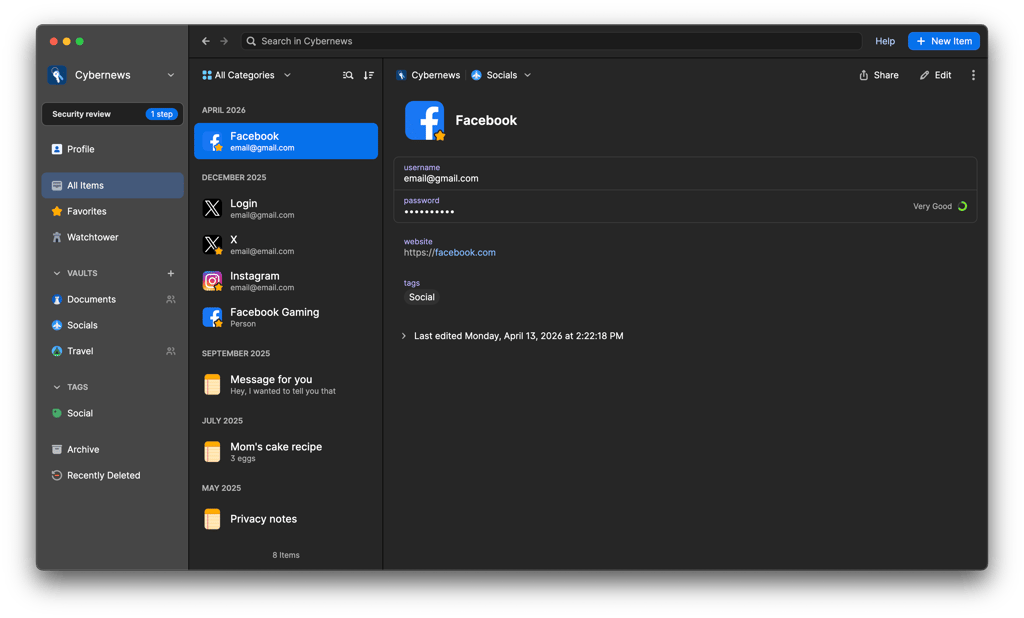
Sticky Password's desktop interface felt less polished during my testing, although navigating the app and accessing its core password management features was still straightforward. The Windows app has also received some recent improvements, including dark mode support introduced in 2026.
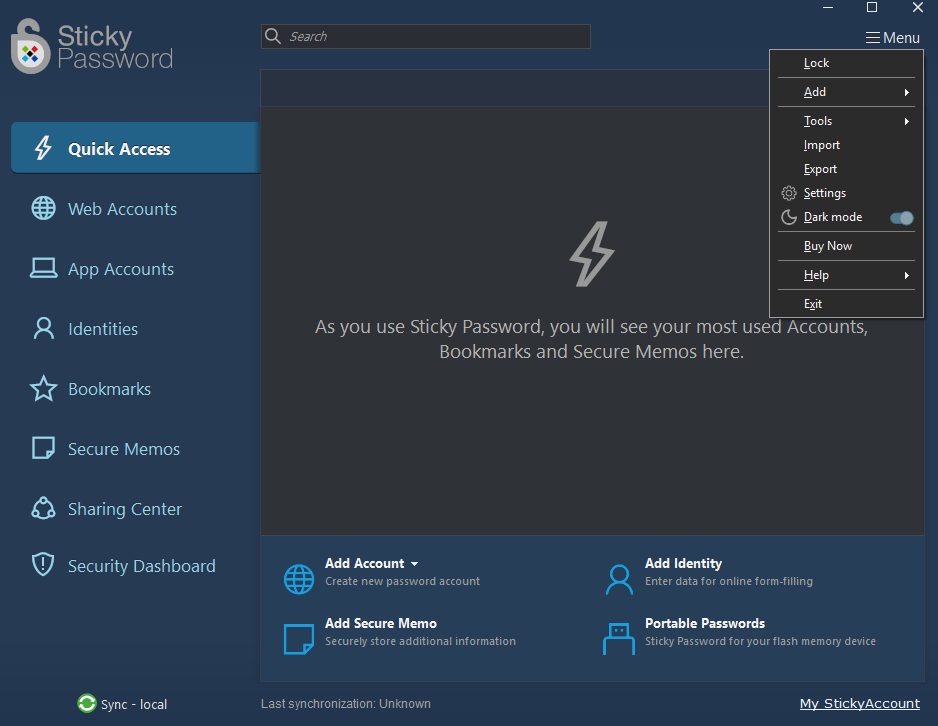
In brief, while both password managers’ desktop apps serve their purpose well, 1Password gets extra points for its user-friendly and modern interface.
Browser extensions
Both password managers support extensions for major browsers, including Chrome, Firefox, Edge, Brave, and Safari, although Sticky Password supports several additional browsers, such as Opera and Vivaldi.
1Password offers a particularly capable browser experience. Its extension lets you save and autofill credentials, generate passwords, fill addresses and payment information, manage one-time passwords, and access saved vault items directly from your browser. Sticky Password's extension also handles essential browser-based tasks such as saving credentials, autofill, and form filling, although it relies more closely on the main Sticky Password app.
Mobile apps
Whether you use 1Password or Sticky Password on iOS or Android devices, setting up is easy. You just need to download the chosen app from the Apple App Store or Google Play Store.
During my testing, I found 1Password's iOS and Android apps clean, responsive, and easy to navigate. They provide the core functionality needed for mobile password management, including access to saved items, password generation, autofill, and biometric unlocking.
Sticky Password also provides feature-rich mobile apps for Android and iOS, with functionality such as autofill, password generation, synchronization, and biometric authentication. During testing, I found both versions straightforward to navigate and well suited to everyday password management.
1Password vs Sticky Password: customer support
1Password has a slight advantage over Sticky Password when it comes to customer support, mainly because it provides a broader selection of support resources.
With 1Password, you can find troubleshooting information and guides in its extensive support center or contact the support team directly. There's also an active 1Password Community, where you can ask questions and get help from other users and 1Password team members. 1Password also provides an automated customer-support chatbot for additional assistance.
Sticky Password also has an extensive Help Center covering common setup, troubleshooting, and feature-related questions. Premium users can contact its support team directly and receive priority assistance, with Sticky Password stating a typical response time of within 24 hours on working days.
1Password vs Sticky Password: final verdict
1Password is the better password manager overall, thanks to its broader feature set, advanced security architecture, and more extensive independent security assessments. Features such as Watchtower, Travel Mode, passkey support, secure file storage, and its unique Secret Key make it particularly suitable for users looking for a comprehensive password management solution.
Sticky Password remains a solid alternative, especially if you value flexible synchronization or want to avoid recurring subscription costs with its Lifetime plan. It offers AES-256 encryption, Local Wi-Fi Sync, Emergency Access, and other essential password management tools. However, its more limited MFA options, narrower feature set, and lack of comparable publicly available independent security assessment reports give 1Password the overall advantage.
More password manager comparisons from Cybernews:
FAQ
Is 1Password better than Sticky Password?
Yes, 1Password is better than Sticky Password overall. It offers a broader feature set, additional security measures such as its Secret Key, more MFA options, and more extensive independent security assessments. Sticky Password remains a good choice for users who prioritize flexible synchronization and a lifetime payment option.
Which is better for mobile: 1Password or Sticky Password?
1Password's current iOS and Android apps are quite comprehensive – they support password management, autofill, password generation, one-time passwords, multiple accounts/vaults, and other functionality. Its mobile apps can now also import credentials directly from compatible password managers through Credential Exchange.
Can 1Password import from Sticky Password?
Yes, 1Password can import from Sticky Password. 1Password doesn't currently list Sticky Password as one of its dedicated direct-import sources. However, 1Password supports importing appropriately formatted CSV files from other applications.